Part 3: Wire HITL via Event Streams and Boomi Flow
In Part 2 you built and deployed the Sourcing Agent. In this part, you'll wire the agent into a human-in-the-loop (HITL) review surface — the Boomi pattern for HITL is Event Streams + Boomi Flow. The agent publishes every MEDIUM or HIGH severity recommendation to a Boomi Event Streams topic, and a pre-built Boomi Flow approval dashboard lets reviewers click Approve or Reject. The decision flows back to a second Event Streams topic for downstream consumers, and a tombstone pattern keeps the dashboard tidy.
How the HITL Path Works
Once a workshop participant fires the Sourcing Agent, the path their recommendation takes is:
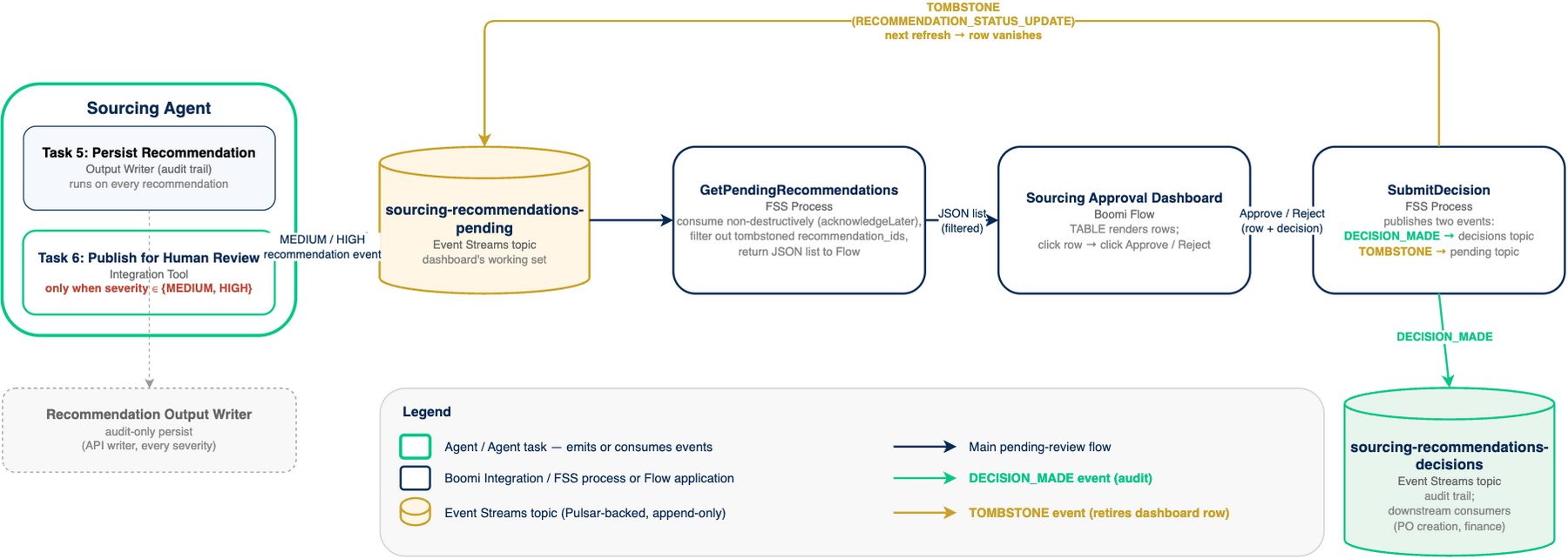
Two topics, two purposes:
sourcing-recommendations-pending— the dashboard's working set. Pending recommendations land here, tombstones retire them.sourcing-recommendations-decisions— the audit trail of approve/reject decisions. Downstream systems (PO creation, finance) subscribe here.
Add Task 6 to Your Agent: Publish for Human Review
The agent you built in Part 2 has five tasks — enough to research, rank, and persist a recommendation, but not to route it for human review. Add a sixth task that publishes MEDIUM and HIGH severity recommendations to the HITL Event Stream.
The task will call an Integration tool that you'll build in the next section, so we'll add the task now with no tool attached and come back to wire it up after the tool exists.
-
In Agent Garden → Agents, open your
[builderInitials] Sourcing Agent. -
Click Edit in the upper right to open the agent in the designer.
note"Edit" briefly takes your active deployment offline so the agent definition can be modified. The deployment slot stays in place — when you redeploy at the end of Part 3, it rolls forward to the new package version automatically.
-
In the stepper at the top, click Tasks to advance to the Tasks screen.
-
At the top of the Tasks list, click + Add New Task.
-
Task Name:
Publish for Human Review -
Description:
Publish MEDIUM and HIGH severity recommendations to the HITL Event Stream so a human reviewer can approve or reject them on the Sourcing Approval Dashboard. -
Instructions: Paste the following block. This tells the agent when to run the task and which fields to pass to the publisher.
Run this task ONLY when the recommendation's severity is MEDIUM or HIGH. Skip it entirely for LOW severity — LOW recommendations are auto-approved by Task 5 and do not need human review.

When the severity gate is met, call the Publish Rec to HITL tool exactly once, passing:
- RECOMMENDATION_ID: the recommendation_id returned by the Recommendation Output Writer in Task 5.
- SEVERITY: the severity band (MEDIUM or HIGH) you computed in Task 4.
- SOURCING_EVENT_ID: the sourcing_event_id you generated at the start of this run.
- PAYLOAD_JSON: the complete ranked-vendor recommendation object (the same body you sent to the writer), serialized as a JSON string.

Do not modify the recommendation between Task 5 and this task — publish exactly what the writer persisted so the human reviewer sees the same data the audit trail captured. -
Leave the Tools section empty for now. You'll attach the Integration tool after you create it in the next section.
-
Click Add Task.
The new task appears at the bottom of the Tasks list with Manage Tools (0). Your agent now has six tasks.
-
Click Save at the bottom of the screen to persist the new task in the agent's draft state. Leave the agent open in DRAFT — you'll come back here to attach the tool and redeploy after the next section.
Create Your HITL Publisher Integration Tool
The Sourcing Approval Dashboard is shared by everyone in the room. To tell rows apart, each participant's recommendations carry their builder initials in the buyer_id field. We bake this in once, at tool-creation time, rather than passing it from the chat on every prompt — same pattern the Invoice Reconciliation with DataHub lab uses for the per-participant email recipient in its mail tool.
You'll create a personal copy of the HITL publisher tool that points at the shared Boomi Integration process and hard-codes your initials in a Dynamic Process Property.
-
From the Tools screen in Agentstudio, click Create New Tool.
-
Select Integration from the Agent Designer modal and click Add Tool.
-
Tool Name:
[builderInitials] Publish Rec to HITLnoteThe short name keeps you under Agentstudio's tool-name character limit. The Boomi Integration process this tool wraps is still named
Publish_Recommendation_to_HITL_Streamin full — you'll pick it from the dropdown a few steps below. -
Description:
Publishes a MEDIUM/HIGH severity sourcing recommendation to the human-in-the-loop Event Stream for this participant. -
Under Input Parameters, add four parameters (click + Add Input Parameter for each):
Name Description Type Required RECOMMENDATION_IDThe REC-<uuid> id returned by the Recommendation Output Writer tool.String Yes SEVERITYThe severity band: MEDIUM or HIGH.String Yes SOURCING_EVENT_IDThe sourcing_event_id you generated for this event.String Yes PAYLOAD_JSONThe full ranked recommendation as a JSON object string (same body sent to the writer).String Yes -
Click Save & Continue.
-
On the runtime + process selection screen:
- Environment:
Prod-Cloud - Runtime:
Workshop Worker - Process:
Publish_Recommendation_to_HITL_Stream(pre-built; shared across all participants — the underscores are how it appears in the dropdown)
- Environment:
-
Click Save & Continue.
-
On the Dynamic Process Properties screen, configure each DPP:
Property Name Value Notes DPP_RECOMMENDATION_ID{{RECOMMENDATION_ID}}Bound to the input parameter — the agent supplies this at runtime DPP_SEVERITY{{SEVERITY}}Bound to the input parameter DPP_SOURCING_EVENT_ID{{SOURCING_EVENT_ID}}Bound to the input parameter DPP_PAYLOAD_JSON{{PAYLOAD_JSON}}Bound to the input parameter DPP_BUYER_IDenter your initials in lowercase, e.g. jdHard-coded to your initials. This is what shows in the dashboard's Buyer column for every recommendation you publish. Why hard-code initials in the toolThis is a workshop-only convenience so we can tell each participant's recommendations apart on the shared dashboard. In a real-world deployment the identifier would come from the authenticated session, not from a tool-configuration value — and you typically wouldn't have a per-user identifier on the recommendation event at all, since events would flow into systems that already know who the user is. We use it here purely to distinguish the rows you publish from the rows everyone else in the room is publishing into the same topic.
-
Click Save and Continue, then Deploy.
-
Return to your
[builderInitials] Sourcing Agentin the agent designer (it should still be in DRAFT from the previous section). On the Tasks screen, find Publish for Human Review at the bottom of the list and click Manage Tools (0). -
Click + Add New Tool.
-
Search for
[builderInitials] Publish Rec to HITL, check the box, click Add Tool, then Save. The task card should now read Manage Tools (1). -
Redeploy the agent: click Save & Continue through the Guardrails and Review screens, then click Create → Package & Deploy → Create Package & Deploy. The deployment slot rolls forward to the new package version with task 6 + the HITL tool bound.
One Integration tool per participantDon't share an Integration tool across participants — every recommendation published through that tool inherits the tool's hard-coded
DPP_BUYER_ID. If two participants attach the same tool to their agents, both their recommendations show up under the same initials on the dashboard. Each participant must build and deploy their own copy.
Open the Sourcing Approval Dashboard
The dashboard is a Boomi Flow application pre-built by the workshop logistics team. Each workshop attendee uses the same URL.
-
Open the Sourcing Approval Dashboard: https://us.flow-prod.boomi.com/8b391af3-43f6-4a85-9325-d177a0da3cf7/play/theme/sourcing-hitl-theme/?flow-id=18349df3-d1f2-4d1d-aa5a-c0c0778da7cd.
The page loads with a single TABLE component listing all recommendations currently in the
sourcing-recommendations-pendingtopic. Each row shows:- Severity — MEDIUM or HIGH (LOW recommendations don't appear here because the agent auto-approves them in Task 5 without publishing for review)
- Recommendation ID —
REC-<uuid>returned by the writer - Sourcing Event —
REQ-<date>-<short>generated by the agent - Buyer — the buyer/participant initials, e.g.
jd,ks,workshop-participant - Submitted — ISO timestamp from the Boomi process when the event was envelope-stamped
- Status —
PENDING_REVIEW(the dashboard filter only returns events still pending)
-
Keep this tab open while you exercise the agent.
Fire the Agent and Watch It Land
-
In a second browser tab, open Agentstudio and click the Chat icon in the left-hand navigation bar.
-
From the agent picker at the top of the page, select your
[builderInitials] Sourcing Agent. (If you starred it in Part 2, it'll be at the top of the favorites list.)noteIf you just re-deployed your agent in the previous section and the Next Steps dialog is still on screen, you can also click Start Conversation there to jump straight into chat.
-
Paste the following prompt and click Send (or press Enter):
We're up for renewal on our M8 fasteners with our three current vendors. Run the sourcing analysis and route the recommendation for review. -
Wait for the agent to finish working. When it returns its ranked-vendor recommendation, note the
recommendation_id(it'll look likeREC-<uuid>) — that's the id your row on the dashboard will carry. -
Switch to your dashboard tab and click Refresh. Your recommendation should appear as a new row, with your initials in the Buyer column (the value baked into your Integration tool's
DPP_BUYER_ID).
Approve or Reject a Row
-
Click the row for your recommendation. The row highlights — under the hood, the TABLE wrote the full recommendation object into the Flow
SelectedRecommendationvalue. -
Click Approve (or Reject).
-
The Flow Player briefly loads, then re-renders the page. Your row is gone.
The disappearance is the visible signal that the HITL handoff completed. Two Event Streams publishes fired behind it:
- A
DECISION_MADEevent tosourcing-recommendations-decisions— the audit trail for downstream consumers (PO creation, finance, analytics). - A
RECOMMENDATION_STATUS_UPDATEtombstone back tosourcing-recommendations-pending— the marker that tells the dashboard's filter to exclude thatrecommendation_idon subsequent loads.
- A
What's Underneath (Reference)
You did not build the FSS-layer Integration processes or the Flow itself in this workshop — they ship pre-built. For reference, the full backend includes:
- Boomi Event Streams: two topics (
sourcing-recommendations-pending,sourcing-recommendations-decisions), each with a subscription consumed by the dashboard. - Boomi Integration: four FSS-exposed processes:
Publish Recommendation to HITL Stream— the Integration tool the agent calls in Task 6.FSS Process - GetPendingRecommendations— Consume pending topic, filter tombstones, return JSON list to Flow.FSS Process - SubmitDecision— Build DECISION_MADE envelope, publish to decisions, build tombstone, publish to pending, return ack to Flow.- A Flow Service component (
sourcingHITL) exposes the two FSS operations to Flow.
- Boomi Flow: one Type, six Values, one Page (TABLE), and a five-element flow graph (start → load message → input page → approve/reject message → loop).
The lab's sourcing_agent_lab/CLAUDE.md is the canonical record of the design decisions, component IDs, and the build sequence.
Where This Pattern Could Go Next
The HITL path you just built is reactive — it only fires when a buyer talks to the agent. A natural next step would be to make the system proactive with a scheduled Boomi process that wakes up on a regular cadence, asks a lightweight "watcher" agent which recent sourcing events have drifted (a price renewal coming due, an SLA breach, a new market signal), and dispatches your Sourcing Agent against each one it flags. Recommendations from those scheduled runs would land on the same dashboard you just exercised, with no change to the HITL path itself.
That kind of design is a multi-agent orchestration pattern. One agent surveys, the Boomi Integration process parses its output, and a second agent does the deep analysis on each event the first one flagged. The orchestration lives on the Boomi Integration canvas — deployed agents aren't exposed as tools to other agents in Agent Garden today, so process-mediated coordination is what works in practice.
We've intentionally left this out of the workshop build to keep the focus on the reactive path you just shipped. If you want to come back to it, every building block is already here: the agent you deployed, the Event Streams topics, the dashboard, and Boomi Integration's Agent step.
You've wired up a full Boomi HITL loop: an Agentstudio agent that publishes MEDIUM and HIGH severity recommendations to a Boomi Event Streams topic, a Boomi Flow approval dashboard that lets a human reviewer act on every one of them, and a clean audit trail of every decision flowing back through Event Streams for downstream consumers. Humans stay in the loop exactly where it matters — on every MEDIUM or HIGH severity decision before it drives a PO.