Part 3: Enable Agent Actions and Test Autonomy
Finally, you will equip your agent with action capabilities—enabling it to update invoice status and communicate findings to stakeholders. Then you'll test your agent and observe how it autonomously determines its approach to reconciliation scenarios.
Create a new Mail Tool
-
From the main "Agents" list, click the Tools icon in the left-hand navigation bar.
-
Click Create New Tool.
-
Select Integration from the Agent Designer modal and click Add Tool.
-
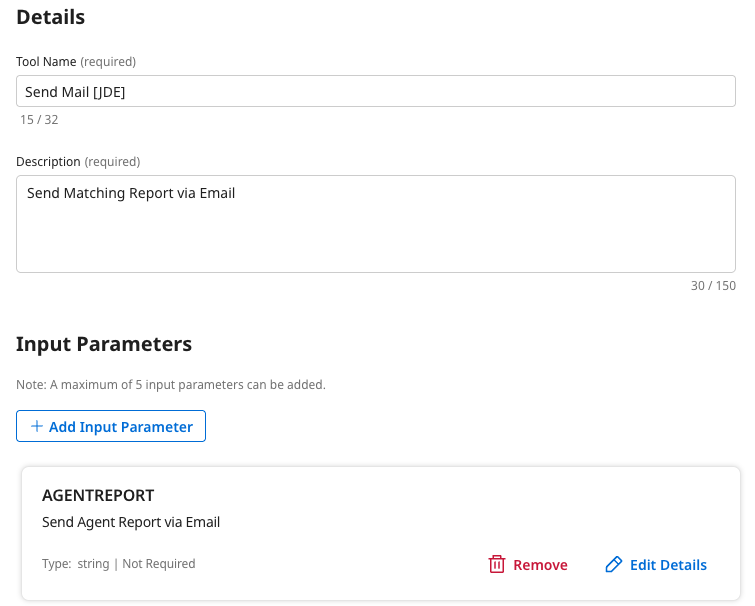
Tool Name:
Send Mail [builderInitials] -
Description:
Send Matching Report via Email -
Under Input Parameters, click + Add Input Parameter.
- Name:
AGENTREPORT - Description:
Send Agent Report via Email - Type: Select String from the dropdown.
- Click Add Input Parameter.
- Name:
-
Click Save & Continue.
-
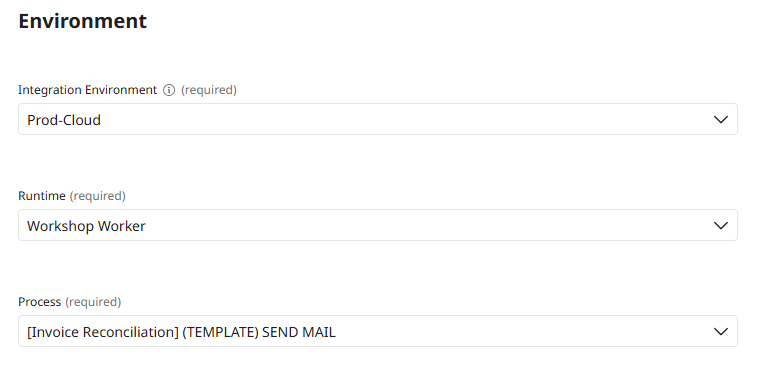
Select the Prod-Cloud Environment.
-
Select the Workshop Worker runtime.
-
Select the [Invoice Reconciliation] (TEMPLATE) SEND MAIL process.
-
Click Save & Continue.
-
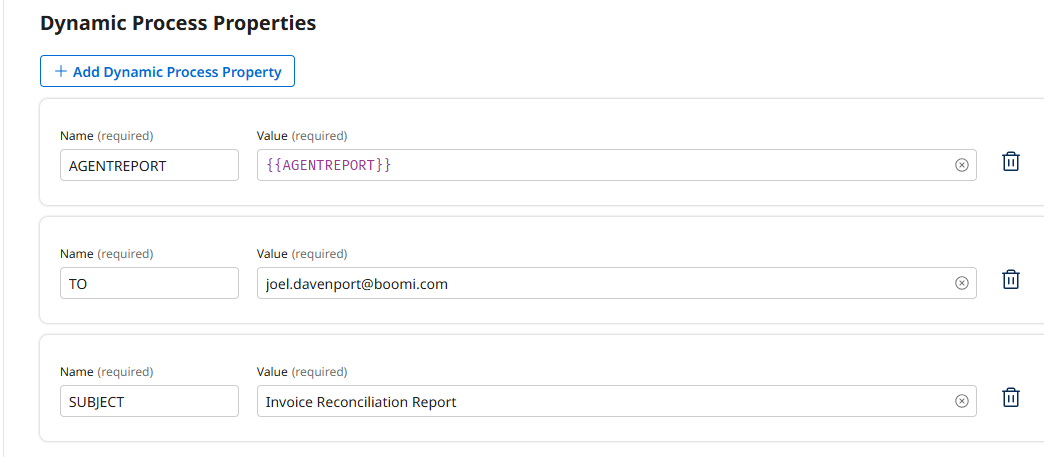
Click + Add Dynamic Process Property
- Name:
AGENTREPORT - Value:
{{AGENTREPORT}}
- Name:
-
Click + Add Dynamic Process Property
- Name:
TO - Value: enter your email address
- Name:
-
Click + Add Dynamic Process Property
- Name:
SUBJECT - Value:
Invoice Reconciliation Report
- Name:
-
Save and Continue and then Deploy the tool.
Provide Action Capabilities to Your Agent
Now you'll attach action tools to your agent's Analysis & Reporting responsibility area. This will complete your agent's capabilities—it will now gather data, validate documents, analyze findings, AND take action based on its analysis.
By providing your agent with both data tools (Part 2) and action tools (Part 3), you've created an autonomous specialist that can handle the complete reconciliation workflow. The agent will decide:
- Which data to gather and when
- How to validate and analyze documents
- When to approve vs. escalate
- What information to communicate to stakeholders
-
Navigate back to Agentstudio → Agents.
-
Disable your Invoice Reconciliation Agent again to edit it.
-
On the Tasks tab, find the Analysis & Reporting task.
-
Click the Manage Tools button for this task.
-
Click + Add New Tool.
-
Search for and check the boxes for the following tools:
Send mail [builderInitials](you built a few moments ago)[Invoice] UPDATE STATUS IN HUB(prebuilt in this shared account)
-
Click Add Tool, and then Save.
Final Deployment
-
Click Save and Continue until you reach the Review screen.
-
Click Deploy Agent and confirm the deployment.
Add the Agent to Favorites
-
Navigate to the Agent List by clicking the Agent button in the left menu bar.

-
Find your Agent in the list. Use the search bar if necessary.
-
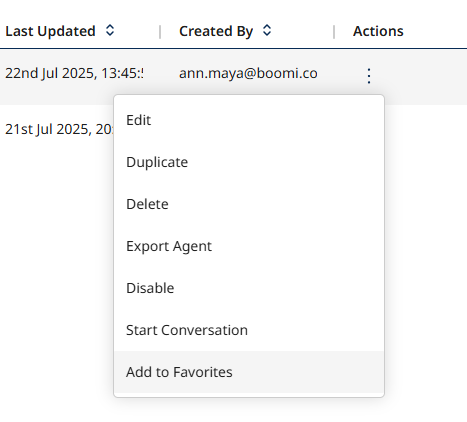
Under the Actions heading, click the vertical ellipsis and select Add to Favorites.
Test Agent Autonomy
Now it's time to test your agent and observe its autonomous decision-making capabilities in action.
-
From the main "Agents" list, click the Chat icon in the left-hand navigation bar.

-
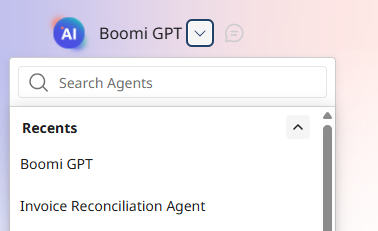
In the top left, click the dropdown next to Boomi GPT, and select your Invoice Reconciliation Agent [builderInitials] from the Favorites list.
-
Ask lab lead for an Invoice ID to check from DataHub, and prompt the agent to
Evaluate [Invoice ID].- Alternatively, you can navigate to Services → DataHub → Stewardship → Golden Records.
- From there, select Invoice, and remove the Updated: Past 24 Hours filter.

-
Copy and test with an INVOICE_DOC number from the displayed table that is not currently Approved.
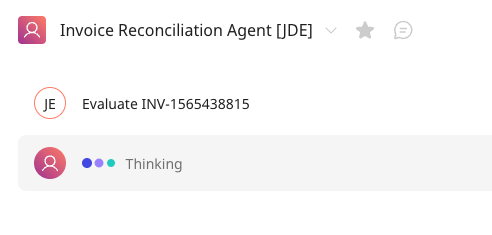 Observe Agent Autonomy
As your agent processes the invoice, pay attention to:
- Tool selection: Notice how the agent autonomously decides which data tools to call and in what order
- Validation approach: The agent determines its own validation strategy based on the data it retrieves
- Decision-making: Watch how the agent decides whether to approve the invoice or flag discrepancies
- Communication: Observe how the agent crafts its analysis and determines what to communicate
This is fundamentally different from traditional workflow automation, where every step would be pre-programmed. Your role-based agent is making intelligent decisions based on its defined responsibilities and available capabilities.
-
Review the agent's analysis and check your email for the reconciliation report. Depending on your corporate policy, you may need to check your Spam folder.
You've successfully built an autonomous Invoice Reconciliation Agent using role-based agentic design principles! Your agent can now independently handle the complete three-way matching process—gathering procurement data, validating documents, identifying discrepancies, and communicating findings to stakeholders. By defining the agent's role and providing it with capabilities rather than prescribing rigid steps, you've created a flexible, intelligent solution that can adapt to variations in procurement scenarios while maintaining consistent business compliance.