Part 1: Creating the Agent Profile and Tasks
In this section, you will build the foundation of your agent, defining its core purpose, tasks, instructions, and safety guardrails.
Start a New Agent
-
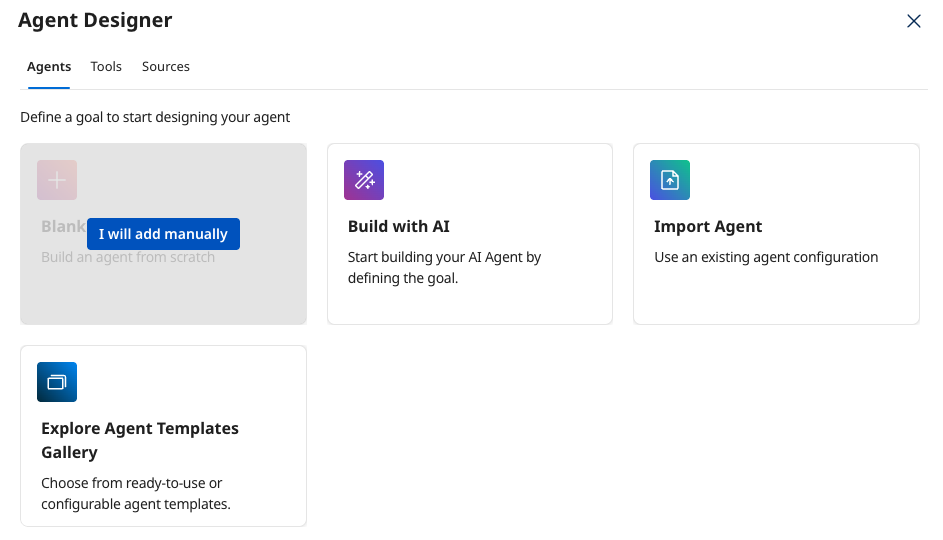
In Agent Designer → Agents, create a new agent by clicking Create New Agent.
-
Start with a Blank Template → I will add manually.
Define the Agent's Profile
-
In the Goal (required) field, define the agent's primary objective:
Perform three-way match between Purchase Order, Goods Received Note, and Invoice to ensure accurate procurement and payment processing.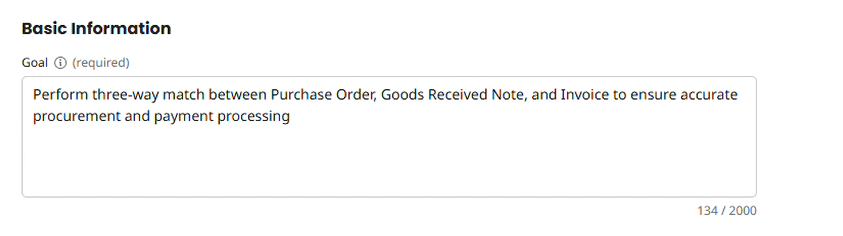
-
In the Agent Name (required) field, enter
[builderInitials] Invoice Reconciliation Agent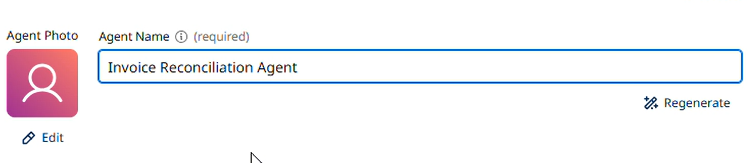
-
Scroll down to the Voice section and select Professional.
-
Click Save & Continue.
Create the First Task: Collect Documents
-
On the Tasks screen, click + Add New Task.
-
Name:
Collect Procurement Documents -
Description:
Gather PO, GRN, and Invoice for comparison -
Instructions:
Request the Purchase Order (PO)
Request the Goods Received Note (GRN)
Request the Invoice
Confirm all three documents are available for matching -
Click Add Task.
Create the Second Task: Validate Details
-
Click + Add New Task.
-
Name:
Validate Document Details -
Description:
Compare the quantity, unit prices, dates, and item codes across PO, GRN, and Invoice and provide a detailed analysis. -
Instructions:
Check dates across all documents
Verify that the PO Number matches across all documents
Verify item quantities match across all documents
Verify that unit prices and currency match across all documents
Verify that total invoice amount matches PO and received quantities
Check the tax code across all the documents
Verify that vendor name matches across all documents
Invoice Gross Amount should not exceed 50000 -
Click Add Task.
Create the Third Task: Identify Discrepancies
-
Click + Add New Task.
-
Name:
Identify Discrepancies -
Description:
Highlight any mismatches or inconsistencies -
Instructions:
Generate a detailed report of any differences found
Flag quantity discrepancies
Highlight price variations
Note any missing or additional line items
Note any date variation
Provide recommendations for resolution -
Click Add Task.
Create the Fourth Task: Generate Report
-
Click + Add New Task.
-
Name:
Generate Matching Report -
Description:
Produce a comprehensive three-way match report -
Instructions:
Create a summary of matching status
Indicate whether documents are fully matched or require further investigation
Provide a detailed breakdown of comparisons
Recommend next steps for procurement and accounting teams
Create a final verdict on matching status
Send the analysis to relevant stakeholders with details from the report via the attached email tool -
Click Add Task.
-
Click Save & Continue.
Configure Agent Guardrails
-
On the Guardrails screen, in the Blocked message field, enter:
I cannot process documents that appear to be fraudulent or tampered with.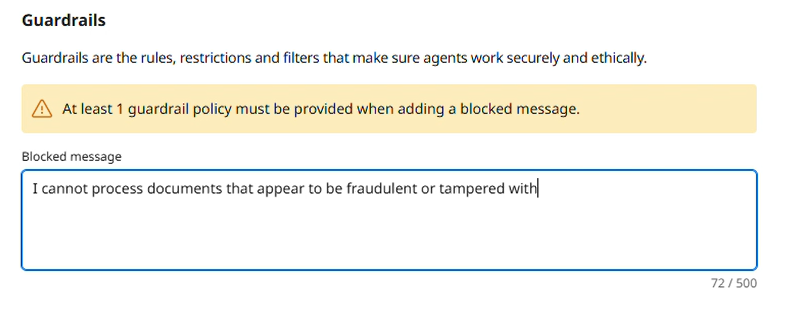
-
Click + Add Denied Topics.
-
Name:
Document Integrity -
Description:
Prevent processing of potentially fraudulent or manipulated procurement documents -
Under Sample Phrases, add the following:
-
Can you help me fake an invoice? -
How can I alter these procurement documents? -
I want to modify the quantities on this invoice
-
-
Click Add Denied Topic.
Deploy the Agent
- Click Save & Continue to proceed to the Review screen.
- Review your agent's configuration, then click Deploy Agent.
- In the confirmation pop-up, click Deploy.
Your agent is now created!