Part 3: Allowing the Agent to Take Action
Finally, you will utilize an existing API to send out the Invoice Reconciliation report to stakeholders. You will also give the agent the ability to call the ERP and update the relevant Invoice with a status based on the result of the reconciliation process.
Create a new Mail Tool
- In Agent Garden, click the Tools icon in the left-hand navigation bar. Click Create New Tool.
- Select API from the Agent Designer modal and click Add Tool.
- Tool Name:
[builderInitials] Send Mail - Description:
Send Matching Report via Email - Under Input Parameters, click + Add Input Parameter.
- Name:
AGENTREPORT - Description:
Send Agent Report via Email - Type: Select String from the dropdown.
- Click Add Input Parameter.
- Name:
- Click Save & Continue.
- Tool Name:
Tool Configuration
- Choose Add Manually under Configuration:
-
Base URL:
https://c04-usa-east.integrate.boomi.com -
Method: POST
-
Endpoint Path:
/ws/rest/tools/sendEmail -
Basic Authentication:
- Username:
boomi_joel_davenport-XBUHTV.LSK9ET - Password:
127dcae6-015c-4f3c-8494-184785aaff0b
- Username:
-
Request Type: JSON
-
Request Body:
- Replace yourEmailAddress with your email.
{
   "message": " {{AGENTREPORT}}",
   "to": "yourEmailAddress",
   "subject": "Invoice Matching Report"
} -
On the Review screen, verify the tool's configuration and click Deploy Tool.
-
Confirm by clicking Deploy in the pop-up.
-
Create an API Tool to Update the ERP
Update Tool Signature
- Tool Name:
[builderInitials] Update Invoice - Description:
Updates an invoice in the ERP - Input Parameters:
- Parameter 1:
- Name:
Invoice Number - Description:
Invoice Number to Update - Type: Select String from the dropdown.
- Name:
- Parameter 2:
- Name:
Status - Description:
Invoice Status. Must be one of the following: APPROVED, REJECTED, AWAITING REVIEW - Type: Select String from the dropdown.
- Name:
- Parameter 1:
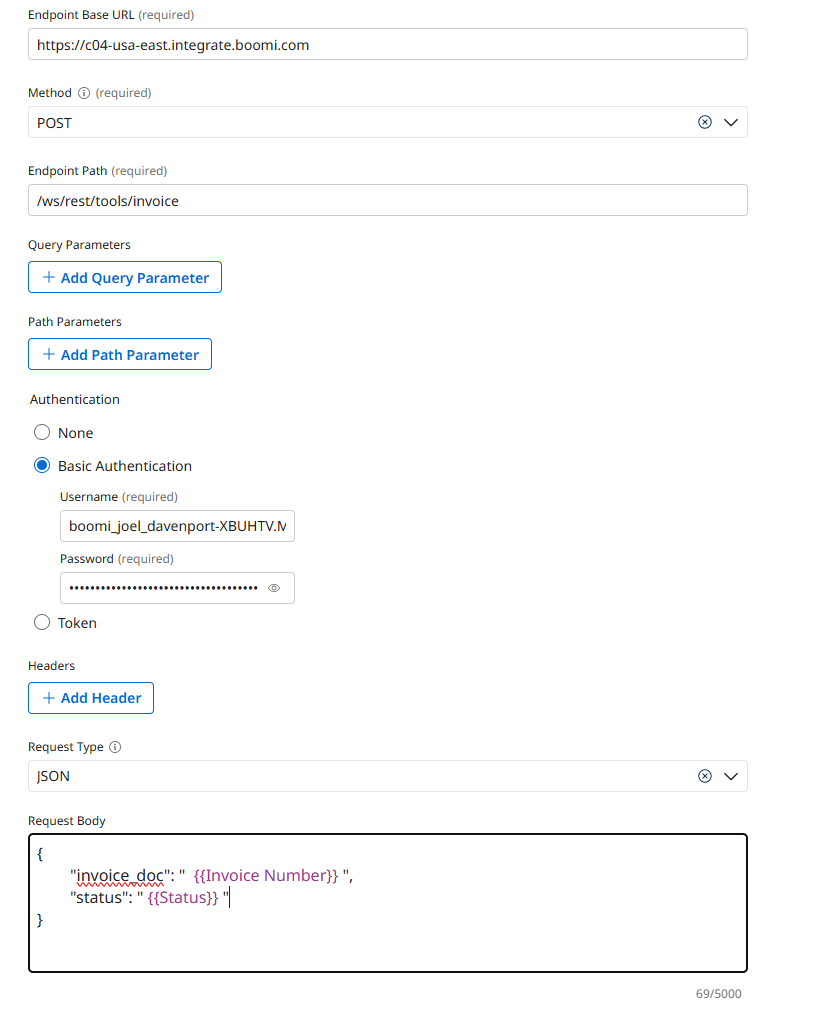
Tool Configuration
- Choose Add Manually under Configuration:
-
Base URL:
https://c04-usa-east.integrate.boomi.com -
Method: POST
-
Endpoint Path:
/ws/rest/tools/invoice -
Basic Authentication:
- Username:
boomi_joel_davenport-XBUHTV.LSK9ET - Password:
127dcae6-015c-4f3c-8494-184785aaff0b
- Username:
-
Request Type: JSON
-
Request Body:
{
   "invoice_doc": " {{Invoice Number}}",
   "status": "{{Status}}"
}
-
On the Review screen, verify the tool's configuration and click Deploy Tool.
-
Confirm by clicking Deploy in the pop-up.
-
Attach these tools to the Agent
- Navigate back to the Agents screen.
- Click on the agent's name (
[builderInitials] Invoice Reconciliation Agent) → Edit → Disable to enter the configuration screen. - On the Tasks tab, find the Generate Matching Report task.
- Click the Manage Tools button for this task.
- Click + Add New Tool.
- Search for and check the boxes for the following tools:
[builderInitials] Update Invoice[builderInitials] Send Mail
- Click Add Tool, and then Save.
Final Deployment
- Click Save & Continue until you reach the Review screen.
- Click Deploy Agent and confirm the deployment.
Add the Agent to Favorites
-
Navigate to the Agent List by clicking the Agent button in the left menu bar.
-
Find your Agent in the list. Use the search bar if necessary.
-
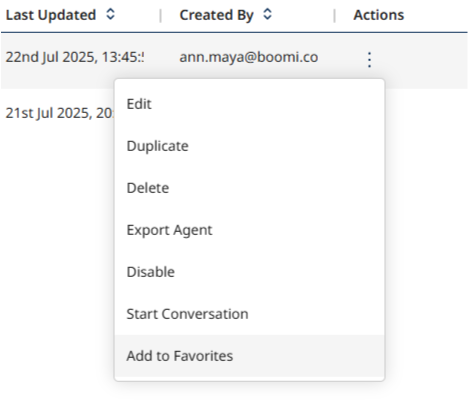
Under the Actions heading, click the vertical ellipsis and select Add to Favorites.
Test the Agent
-
From the main "Agents" list, click the Chat icon in the left-hand navigation bar.

-
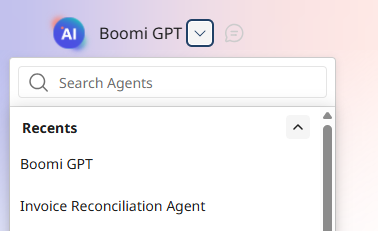
In the top left, click the dropdown next to Boomi GPT, and select your Invoice Reconciliation Agent from the Favorites list.
-
Ask lab lead for an Invoice ID to check, and prompt the agent to
Evaluate {Invoice ID}
You've successfully built an Invoice Reconciliation Agent that automates three-way matching across Purchase Orders, Goods Received Notes, and Invoices. Your agent can now validate documents, identify discrepancies, update ERP systems, and notify stakeholders—transforming a manual, error-prone process into an intelligent automation!