Activity 3: Agent Step
Now that there is a working AI Agent, Precision Source Manufacturing would like you to build an integration process to programmatically invoke the Quote Parts AI Agent using Boomi's integration tools. You'll begin by designing a simple integration flow that accepts incoming requests. From there, you'll configure the process to pass input data into the AI Agent, invoke it programmatically, and handle the agent's response. You will also implement basic logging, error handling, and response formatting to simulate a real-world, production-ready interaction. This lab highlights how AI Agents can be embedded as callable components in broader workflows, enabling event-driven decision-making and automation across your enterprise architecture.
In this activity, you will complete the following:
- Invoke the AI Agent Programmatically
Invoke the AI Agent Programmatically
-
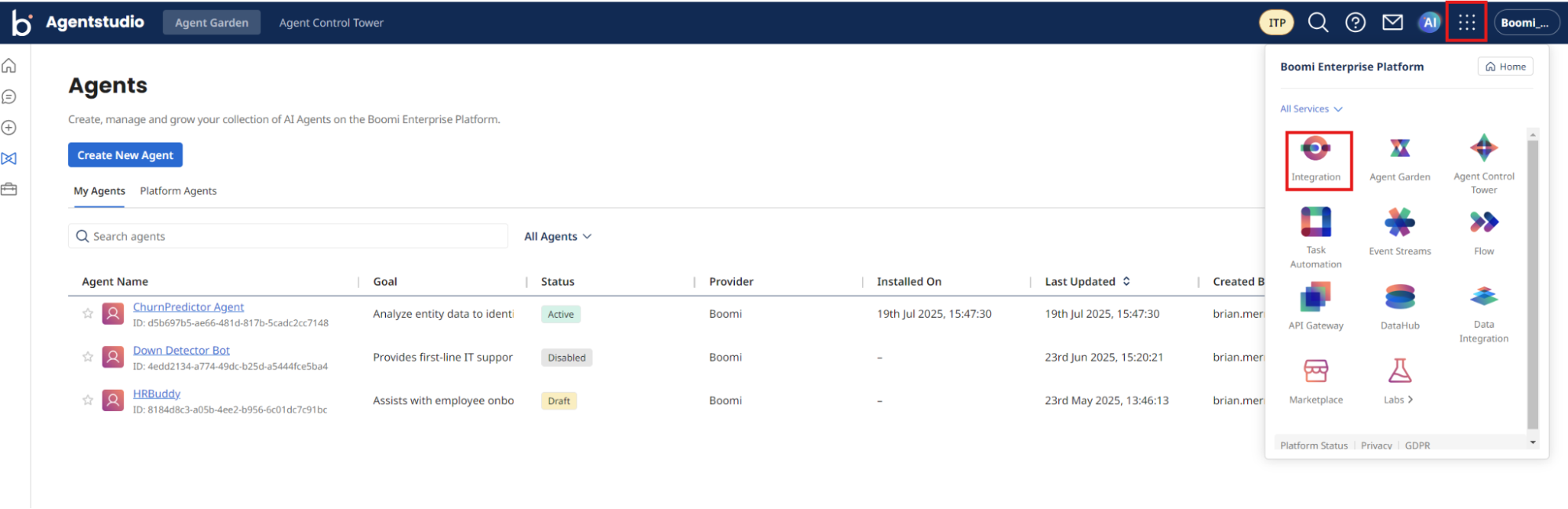
Return to Boomi Integration by navigating to Integration under the menu next to the AI icon.
-
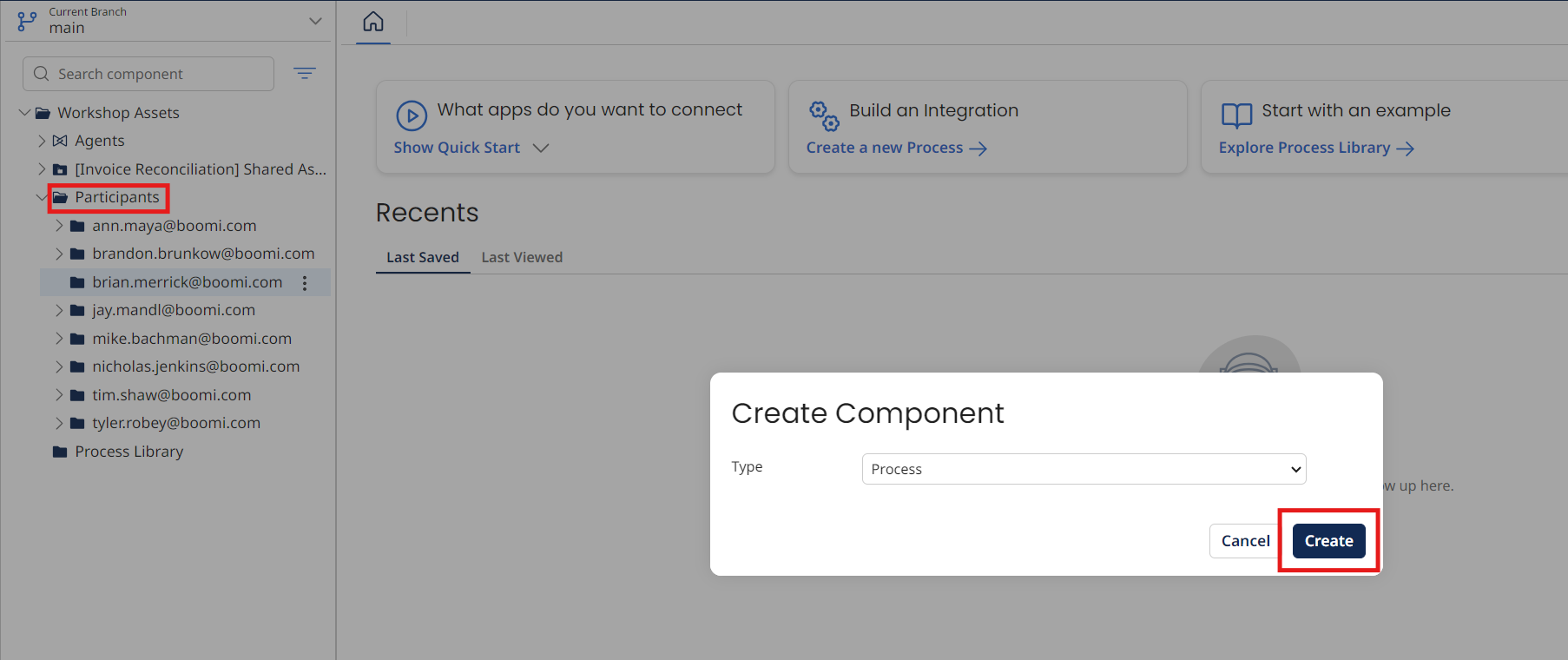
Locate the folder with your email under Workshop Assets → Participants.
-
Select the three dots to the right of the folder name and select New Component → Process → Create.
-
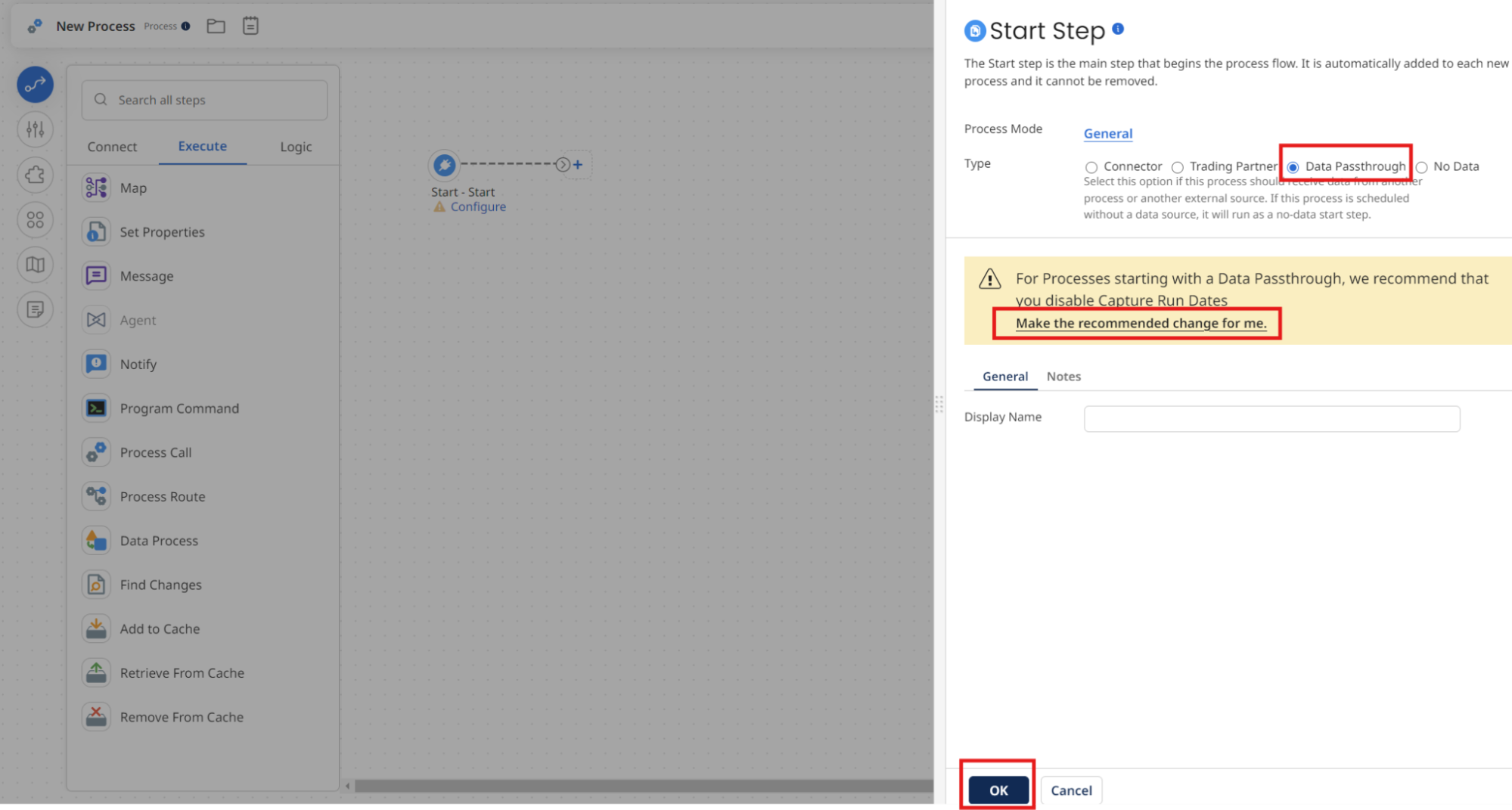
Choose Data Passthrough as the Type and Make the recommended changes for me link. Select OK to close the dialog.
-
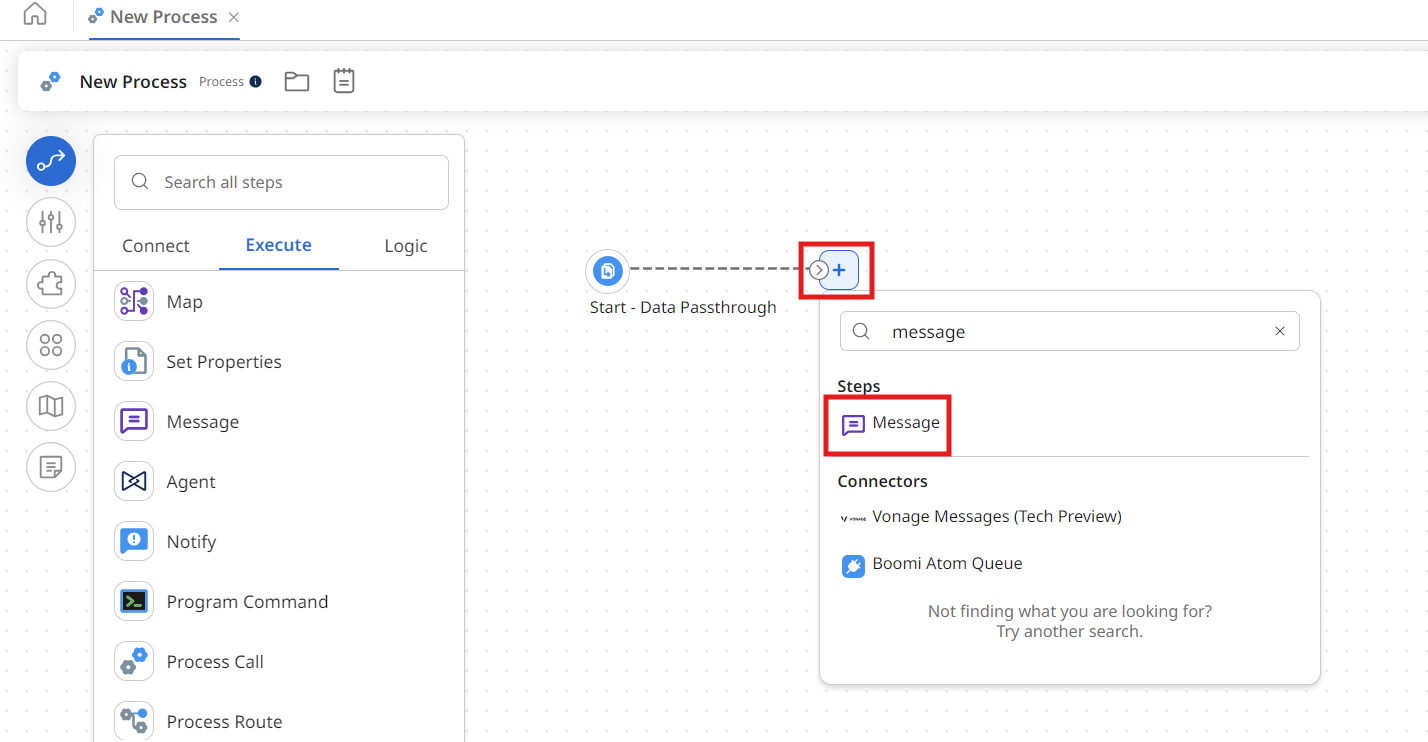
Select the + icon and search for message.
-
Select the Message shape and enter the following text:
For each item in this BOM, identify a category and class mapped to the results from the PIM Classification tool. Use the Parts DataHub tool to retrieve the category and class results. Map each item in the BOM to the closest part in the Parts dataset from the PIM DataHub model. Finally, output a result in CSV format for a quote of the BOM. If there is not a match based on the Parts master data, output highlights that explicitly. Here is the BOM in XML format:
<?xml version="1.0" encoding="UTF-8"?>
<BOM>
  <Header>
    <BOMNumber>BOM-1001</BOMNumber>
    <ProjectName>Warehouse Lighting Retrofit</ProjectName>
    <Revision>Rev A</Revision>
    <DateCreated>2025-08-08</DateCreated>
    <PreparedBy>Engineering</PreparedBy>
    <Currency>USD</Currency>
  </Header>

  <Items>
    <Item>
      <LineNumber>0010</LineNumber>
      <ManufacturerPartNumber>CAB-THHN-12AWG-BLK</ManufacturerPartNumber>
      <Description>12 AWG THHN Building Wire, Black, 500 ft Spool</Description>
      <Quantity>3</Quantity>
      <UnitOfMeasure>Spool</UnitOfMeasure>
    </Item>

    <Item>
      <LineNumber>0020</LineNumber>
      <ManufacturerPartNumber>LHB-150W-5K-V2x</ManufacturerPartNumber>
      <Description>150 W LED High Bay Light Fixture, 5000 K</Description>
      <Quantity>24</Quantity>
      <UnitOfMeasure>Each</UnitOfMeasure>
    </Item>

    <Item>
      <LineNumber>0030</LineNumber>
      <ManufacturerPartNumber>ENC-NEMA4x-24x24x8</ManufacturerPartNumber>
      <Description>NEMA 4 Steel Enclosure, 24 × 24 × 8 in</Description>
      <Quantity>2</Quantity>
      <UnitOfMeasure>Each</UnitOfMeasure>
    </Item>

    <Item>
      <LineNumber>0040</LineNumber>
      <ManufacturerPartNumber>ABC-5HP-480V-3P</ManufacturerPartNumber>
      <Description>5 HP Variable-Frequency Drive, 480 V 3-Phase</Description>
      <Quantity>1</Quantity>
      <UnitOfMeasure>Each</UnitOfMeasure>
      <UnitCost>450.00</UnitCost>
      <ExtendedCost>450.00</ExtendedCost>
    </Item>
    <Item>
      <LineNumber>0050</LineNumber>
      <ManufacturerPartNumber>FUS-KTLM-10B</ManufacturerPartNumber>
      <Description>Class CC Fuse, 10 A, 600 V AC</Description>
      <Quantity>50</Quantity>
      <UnitOfMeasure>Each</UnitOfMeasure>
    </Item>
  </Items>
  <Totals>
    <TotalLineItems>5</TotalLineItems>
  </Totals>
</BOM>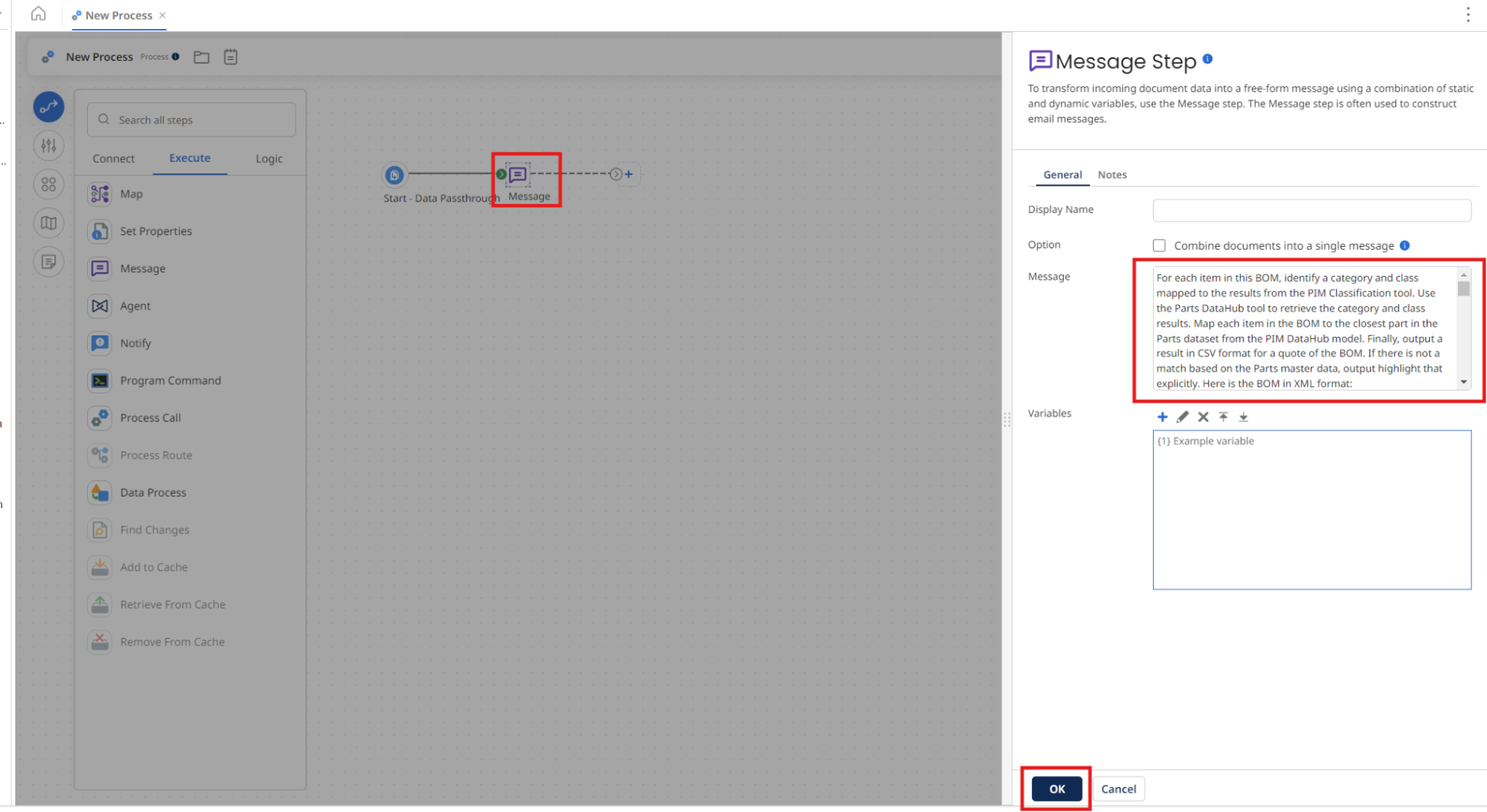
-
Select OK.
-
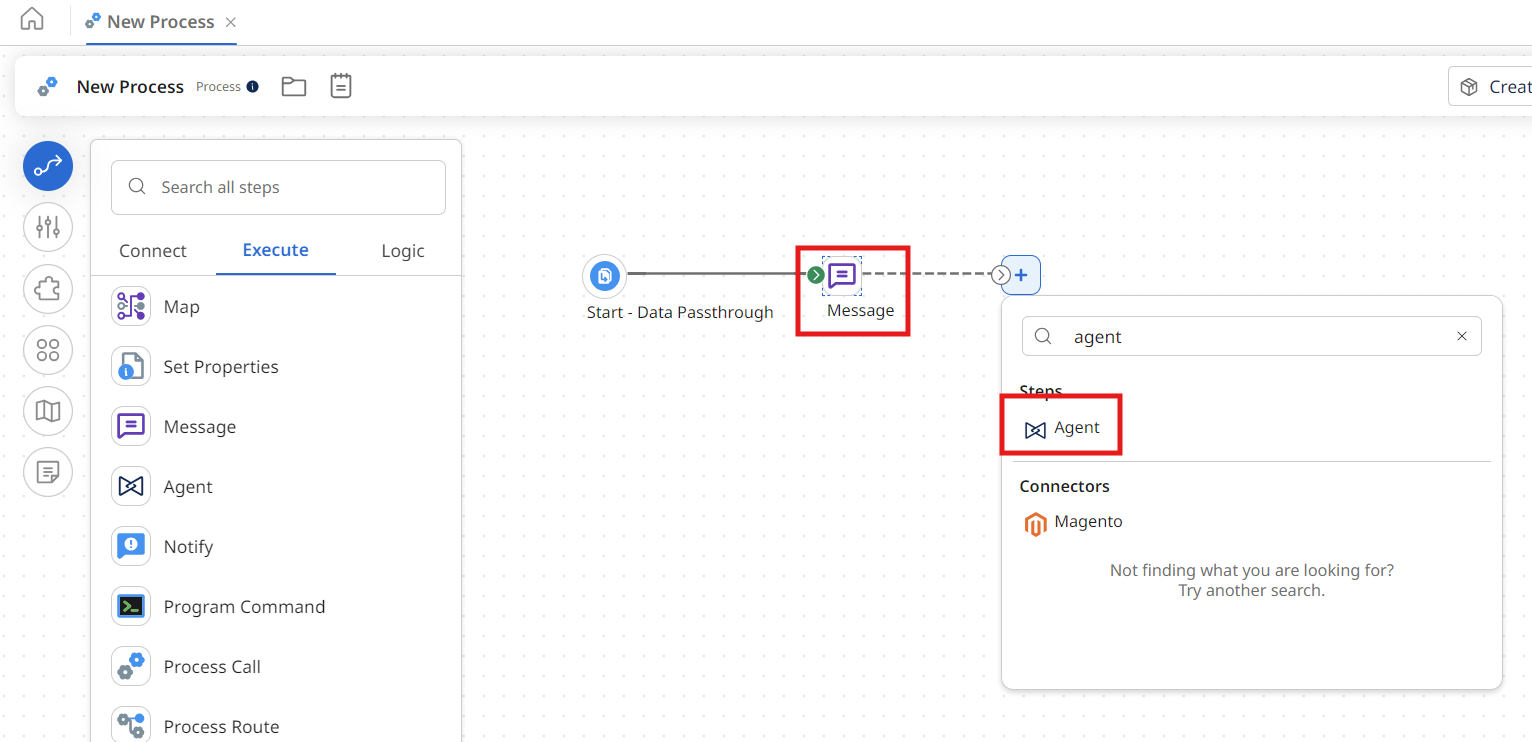
Select the + icon and search for agent.
-
Select the Agent icon.
-
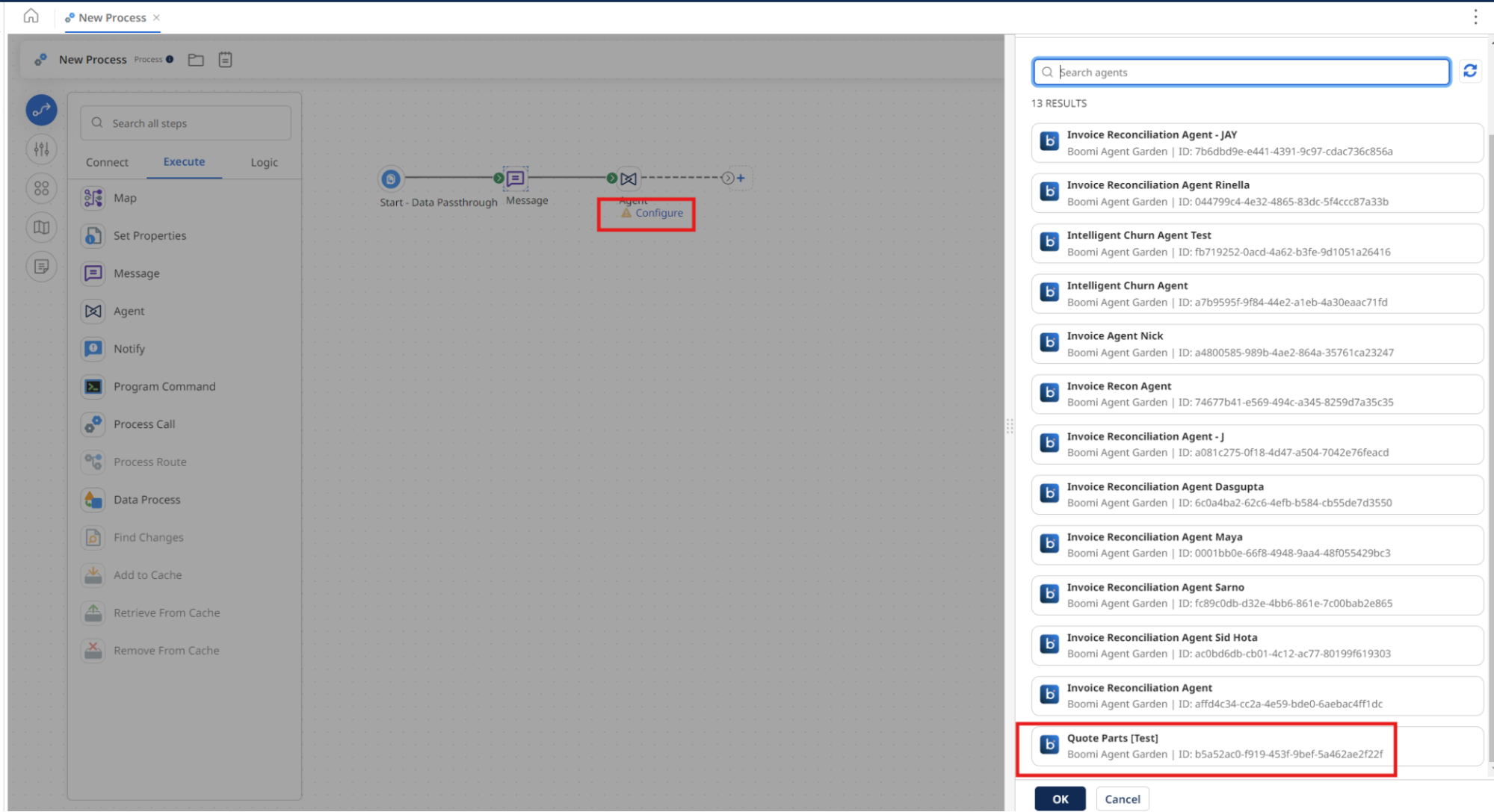
Select Configure under the Agent.
-
Select [builderInitials] Quote Parts.
-
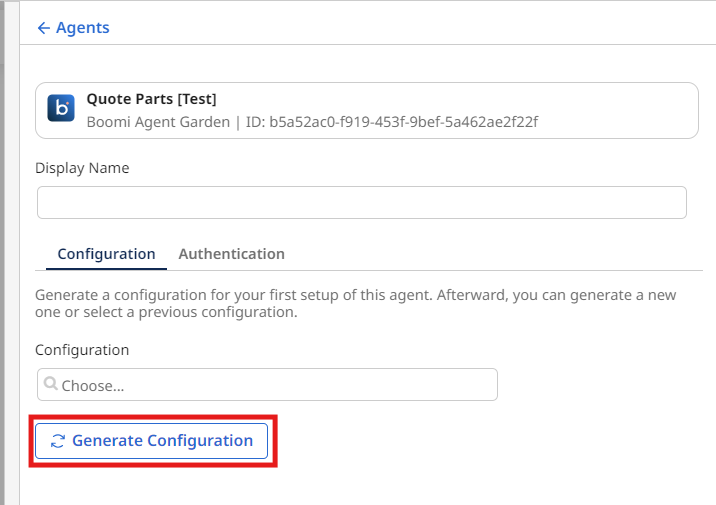
Select Generate Configuration.
-
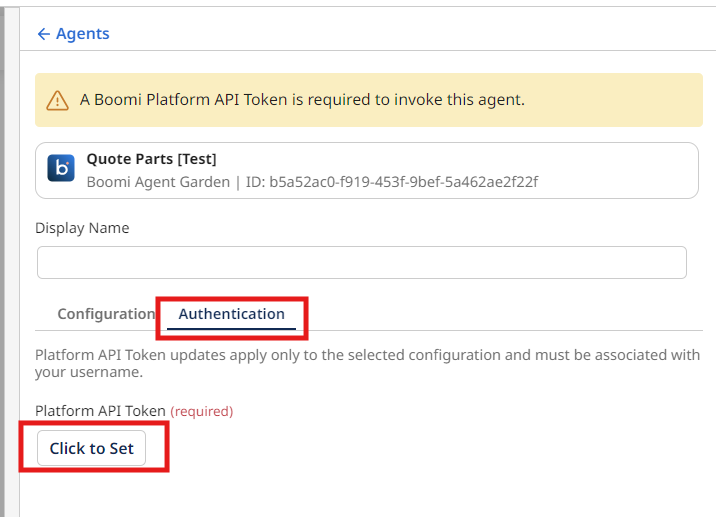
Select the Authentication tab to enter the Platform API Key below:
- Platform API Token:
63736a0d-dfa0-475c-a139-73ed8c364731
- Platform API Token:
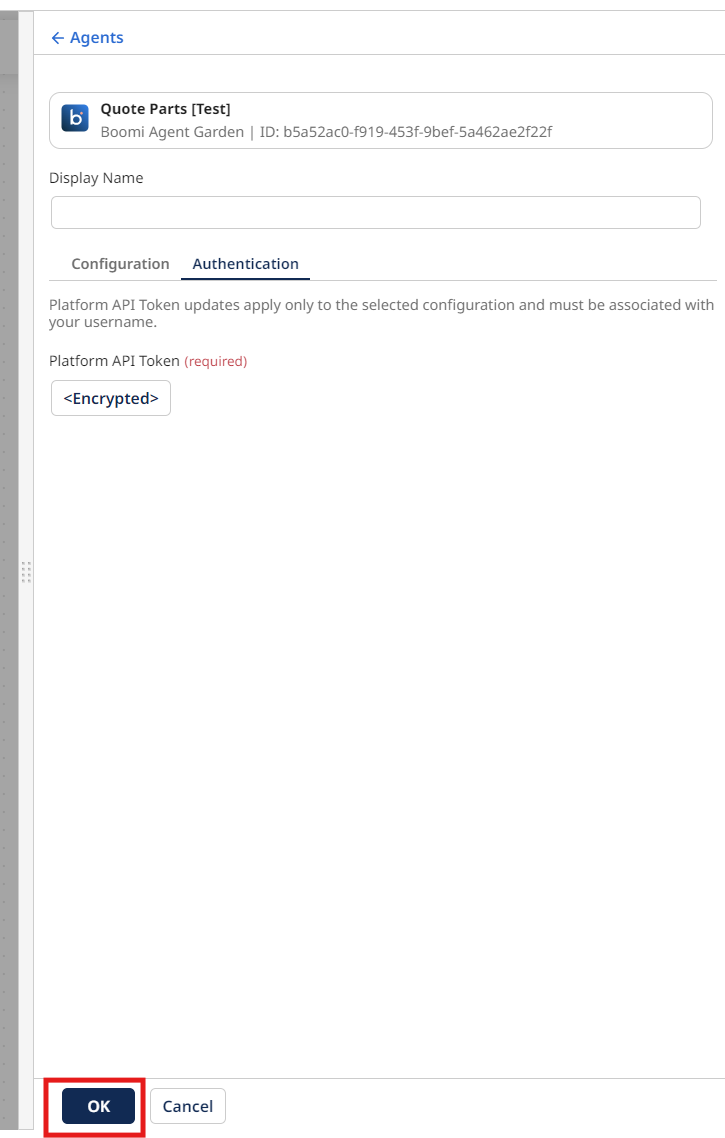
-
Select OK.
-
Add a Stop step to the end of the canvas and rename the process
Quote Parts Agent Step.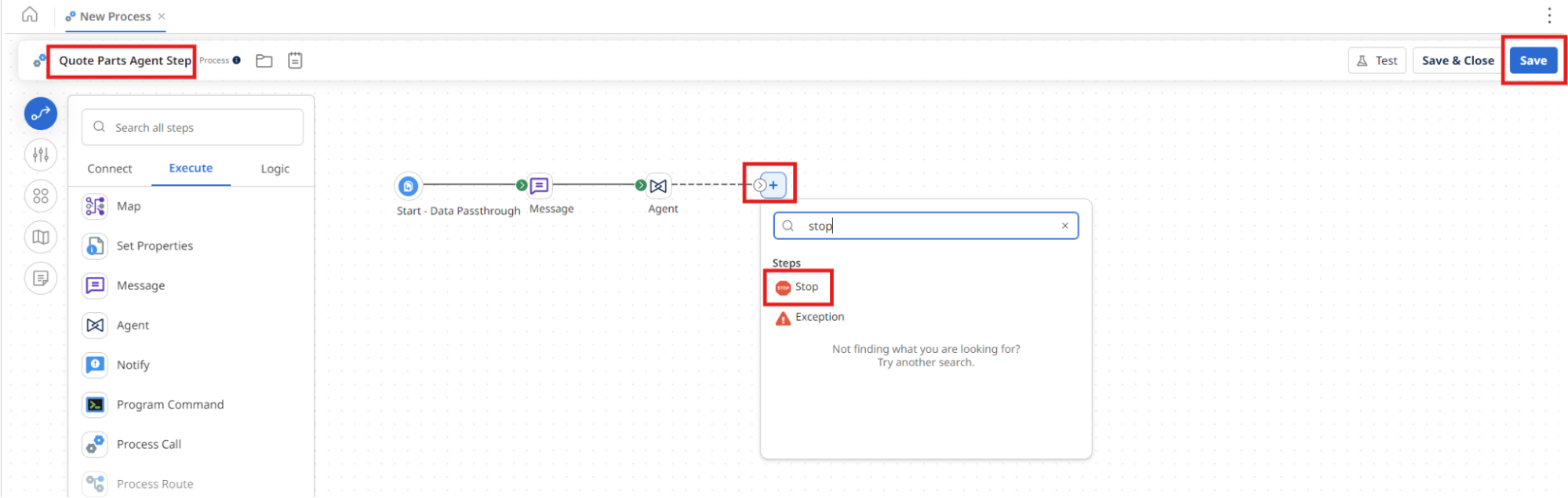
-
Select Save on the canvas.
-
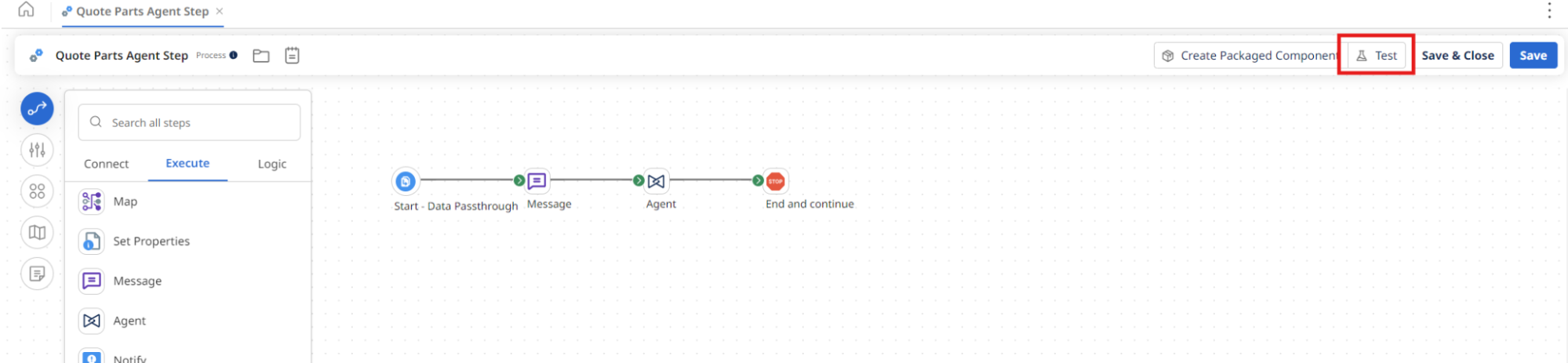
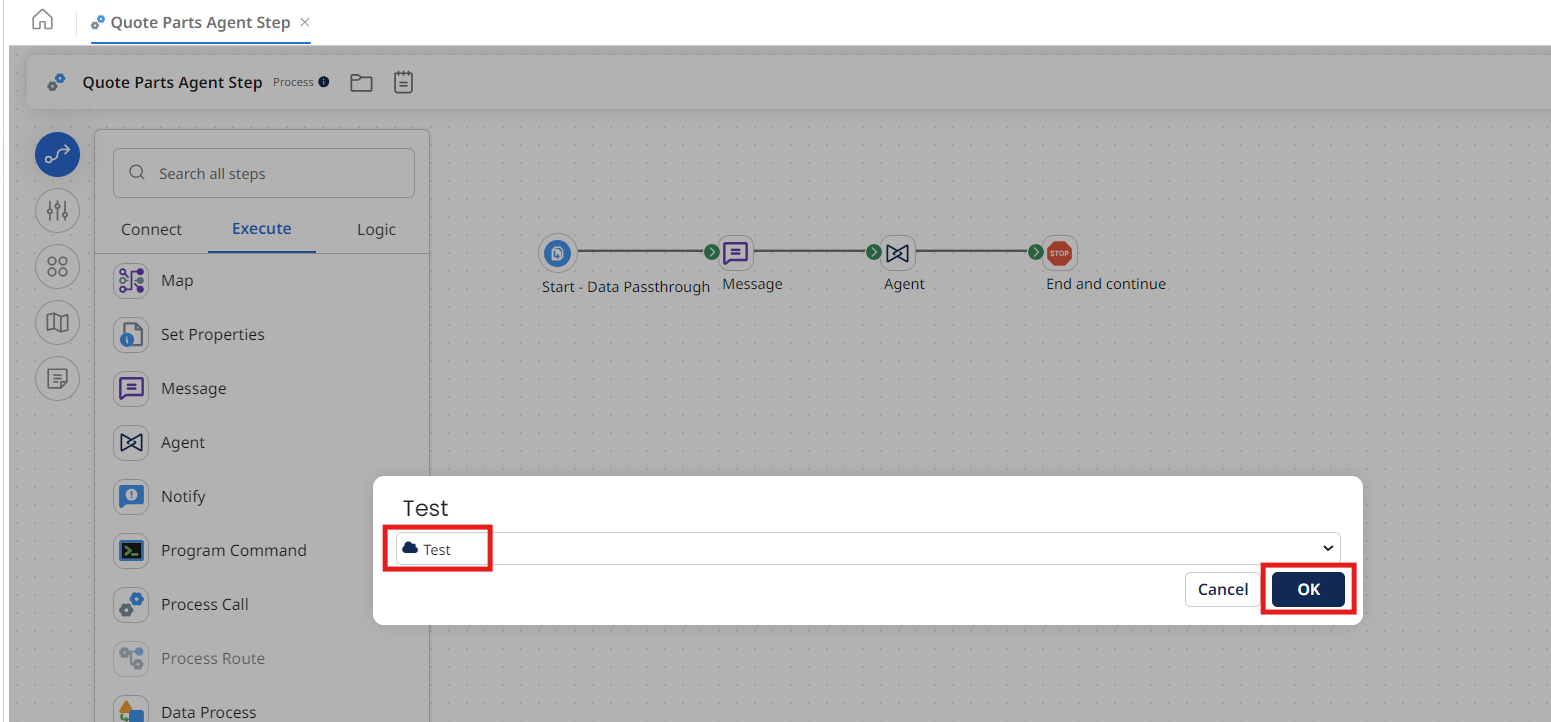
Select Test.
-
Select the Test runtime from the beginning of the lab.
-
Select OK.
-
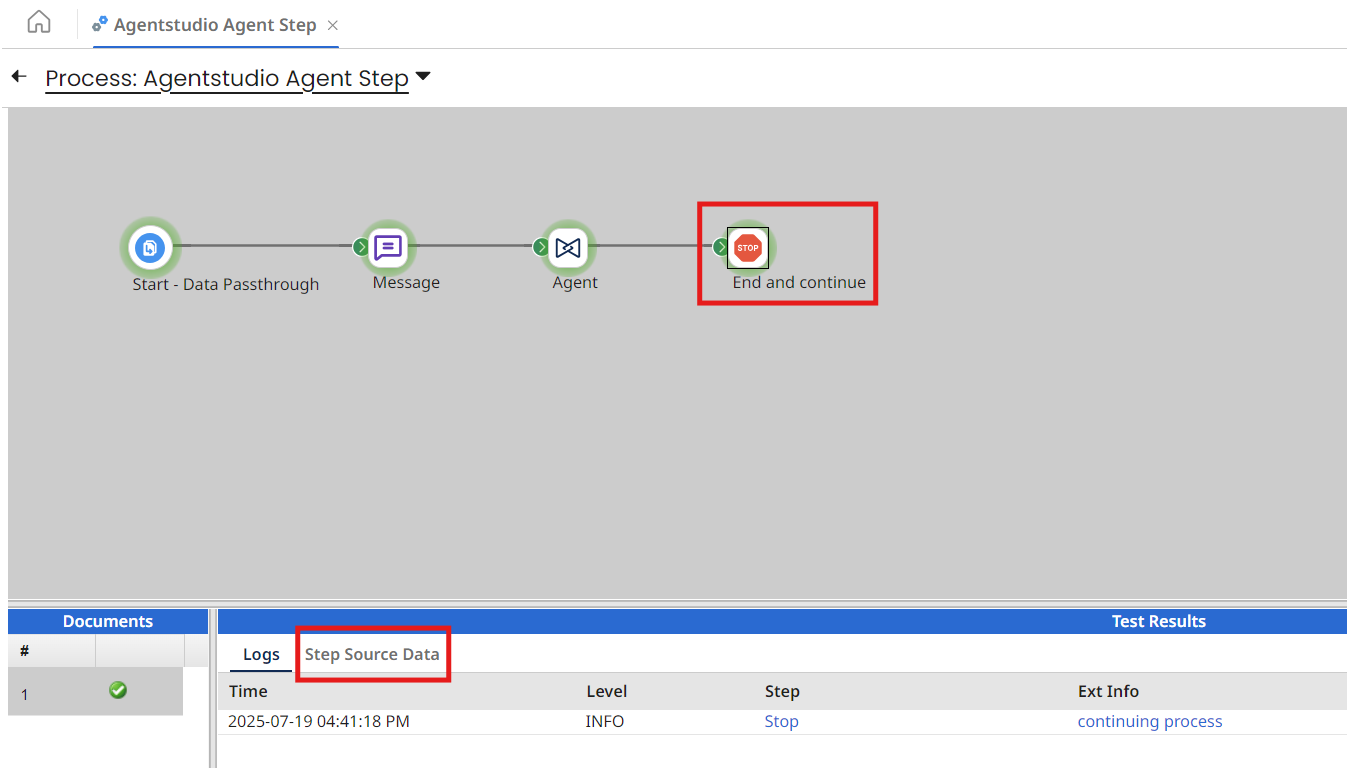
Wait for the process to complete execution and select the Stop step.
-
Select Step Source Data.
-
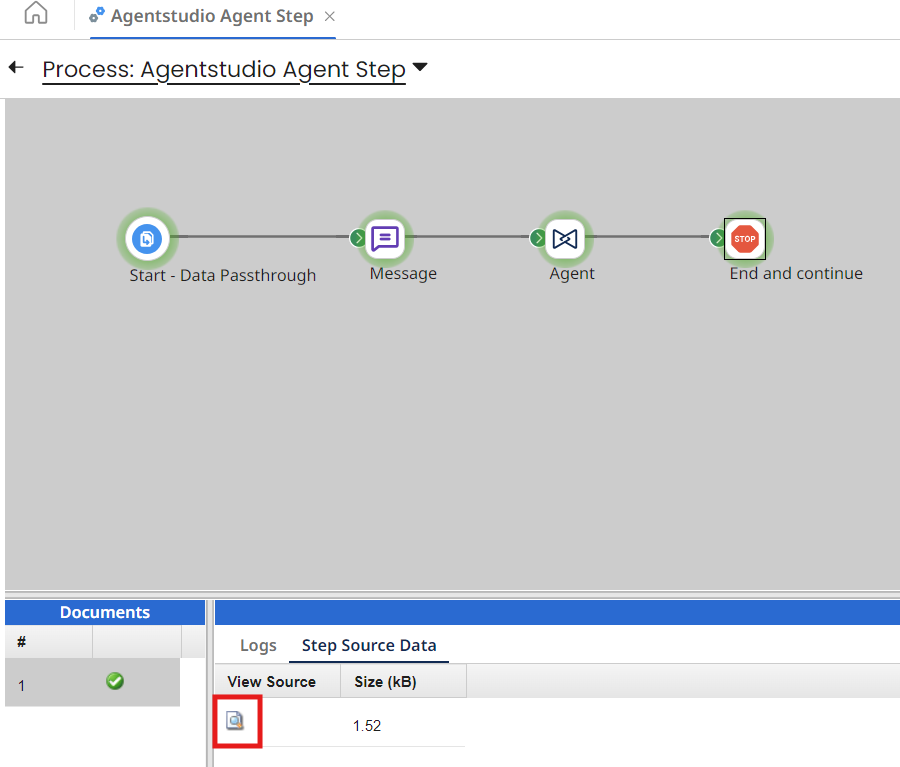
Select the paper icon to view the results.
-
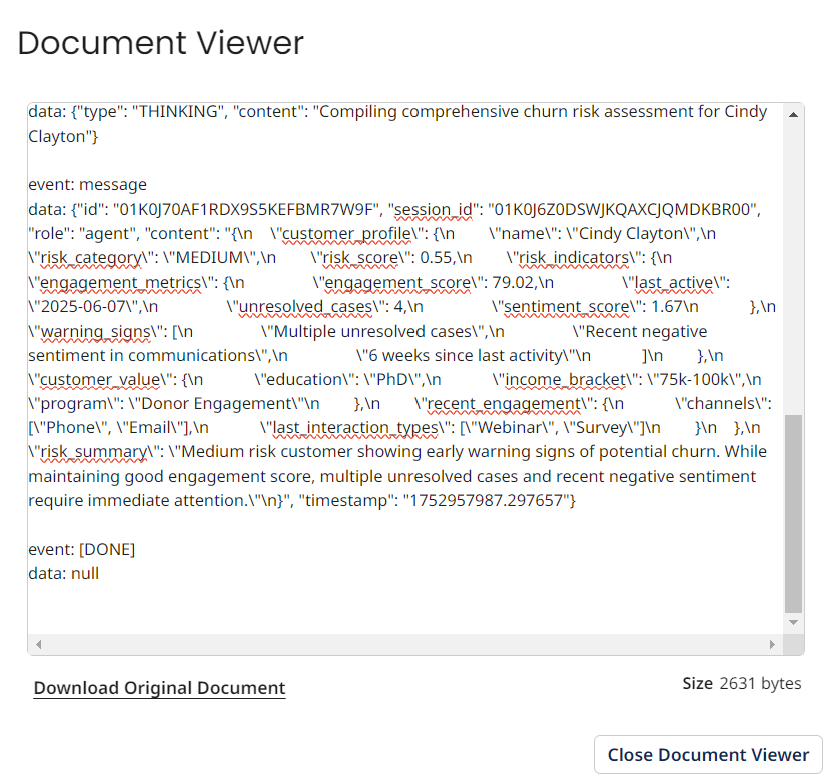
Scroll to the bottom and view the JSON payload.
You've successfully completed testing your Quote Parts AI Agent solution and have completed all activities. You've learned how to build AI Agents, configure tools, set guardrails, and programmatically invoke agents through Boomi integration processes—enabling intelligent, event-driven automation across your enterprise!