Activity 1: API Tools for an AI Agent
Your fictional company, Retentix, wants to improve its customer success process by empowering teams to proactively address churn risks using real-time data. Your task is to create an intelligent agent that allows employees to query customer health metrics, detect early warning signs, and trigger personalized outreach before a customer disengages. This activity provides instructions for two tools you can connect to your agent to surface churn signals, analyze behavior trends, and send retention alerts to account managers.
To get the Retentix Intelligent Churn Detection Agent ready to be helpful, you will create multiple AI Agent Tools that support a proactive customer experience strategy. First, you will create the Customer 360 API Tool, which aggregates and exposes unified customer data across systems to provide a complete, trusted view. Next, you will build the Customer Retention Metadata API Tool, designed to surface and expose key behavioral and sentiment indicators—such as engagement scores and unresolved cases—that help the AI agent identify at-risk customers. Finally, you will develop the Notification and Escalations Integration Tool, which enables downstream actions like automated alerts, ticket creation, and escalation workflows across systems such as Slack, ServiceNow, or email.
In this activity, you will complete the following:
- Building the Customer 360 API Tool
- Building the Customer Retention Metadata API Tool
- Building the Notification and Escalations Integration Tool
Building the Customer 360 API Tool
-
Select the AI button in the top right.
 note
noteThis will open in a new window.
-
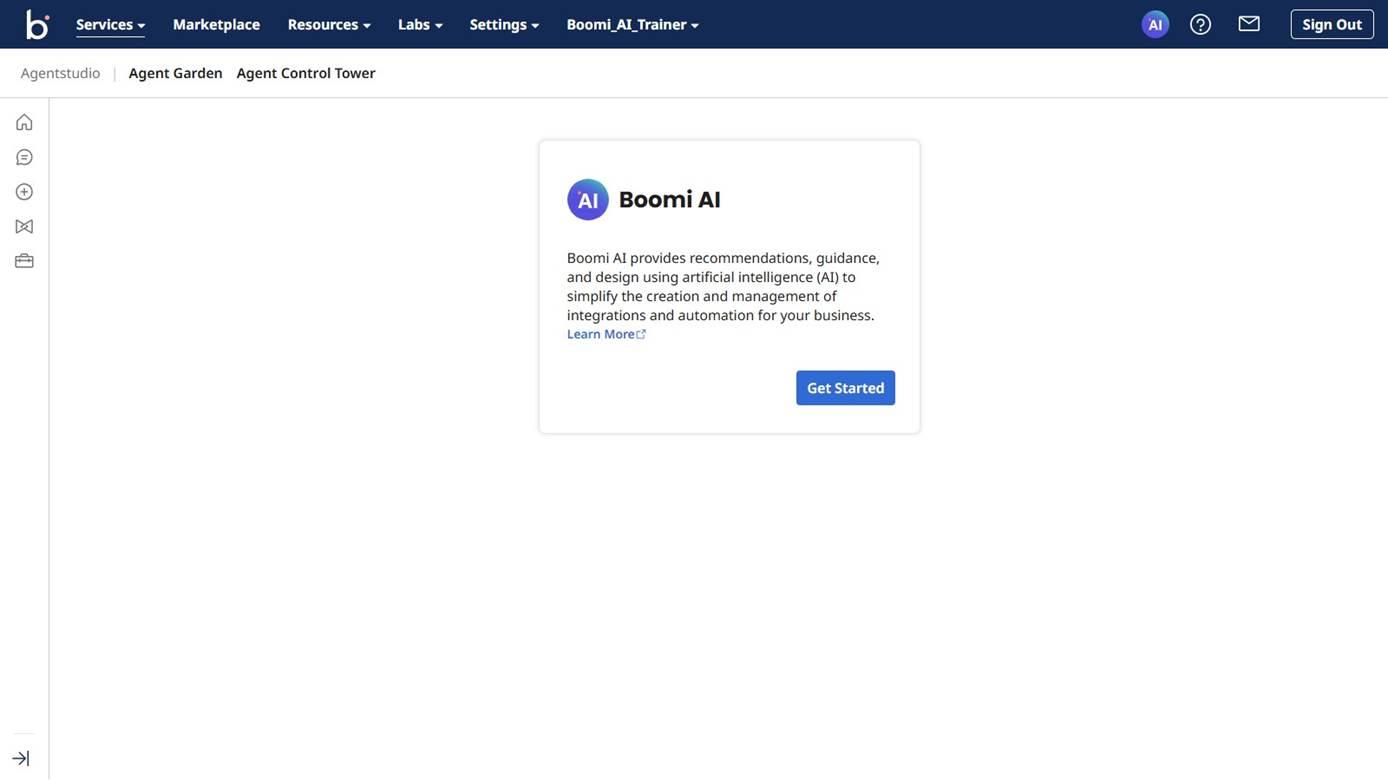
If this is your first time accessing Agentstudio, it will look like this:
-
Select Get Started.
-
Accept the Terms and Conditions.
noteMake sure to use the same account throughout your work for Integration and Agentstudio.
-
Select Agent Designer from the left navigation.

-
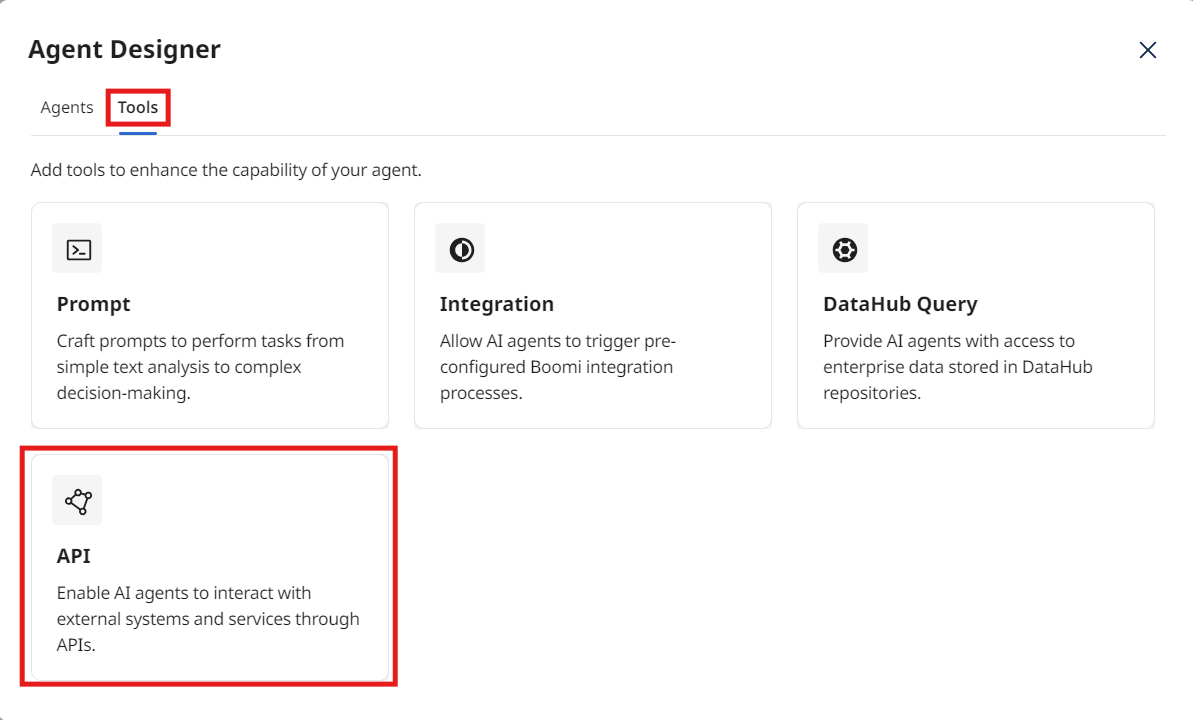
Select the Tools tab.
Add Tool Type: API Tool
-
Select Create New Tool.
-
Select the API Tool.
-
Select Add Tool.
-
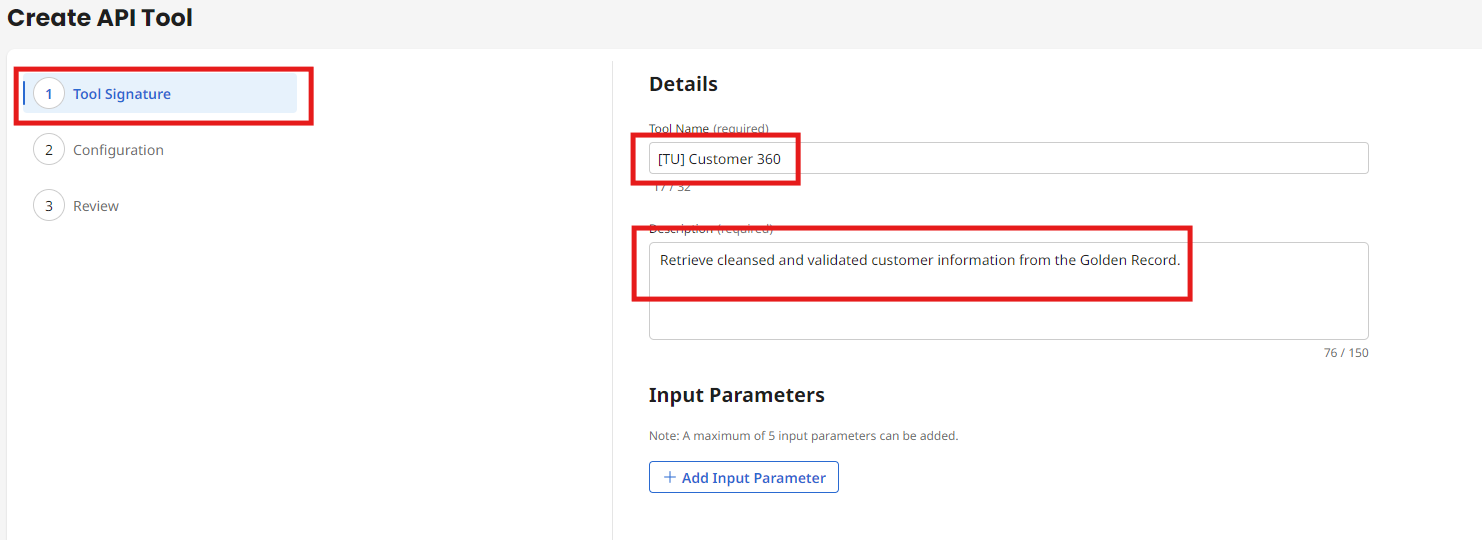
Enter the following:
- Tool Name:
[builderInitials] Customer 360 - Description:
Retrieve cleansed and validated customer information from the Golden Record.
- Tool Name:
-
Click + Add Input Parameter.
-
Configure the contactId parameter:
- Name:
contactId - Description:
Customer ID to retrieve. - Type: String
- Required: False
- Name:
-
Click Add Input Parameter.
-
Select Save & Continue.
Configure your API Tool
-
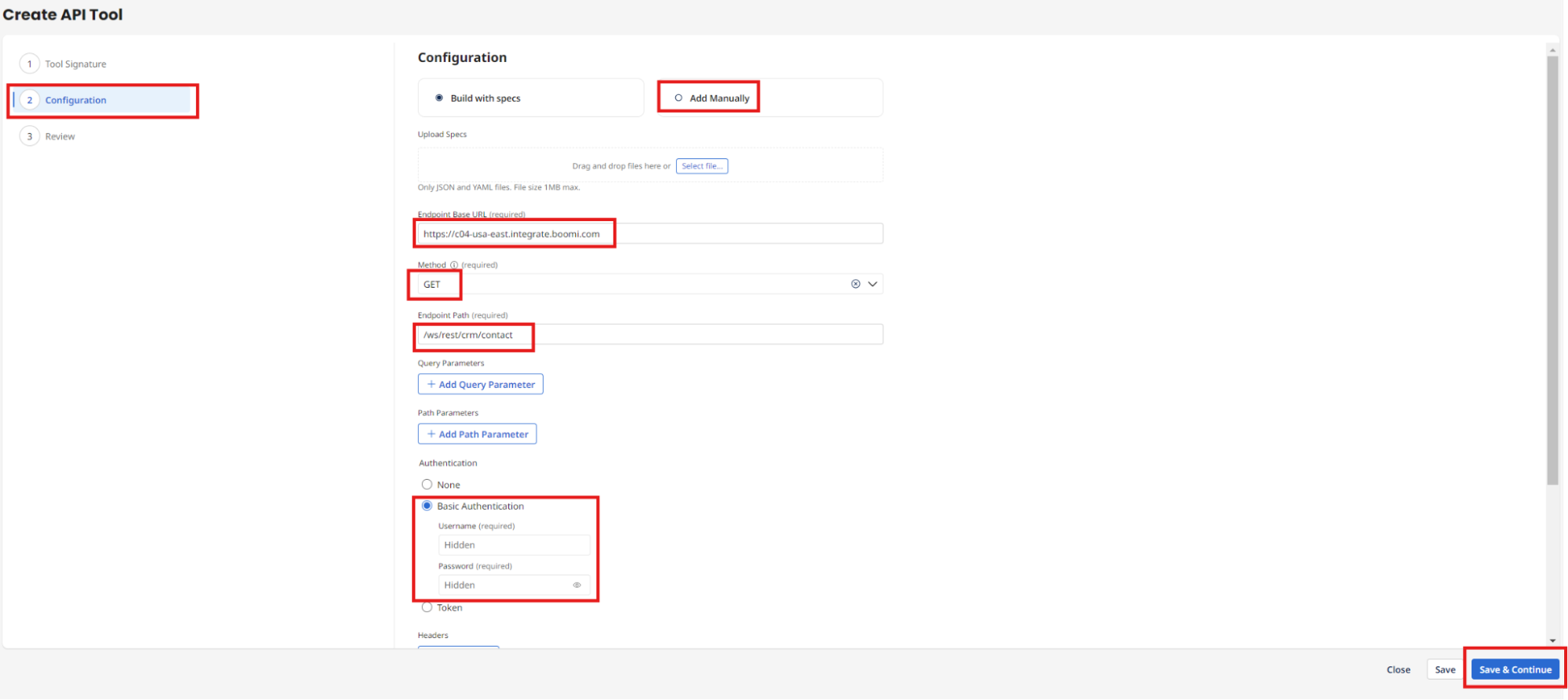
Choose Add Manually on the Configuration screen.
- Base URL:
https://c04-usa-east.integrate.boomi.com - Method: GET
- Endpoint Path:
/ws/rest/tools/contact - Basic Authentication:
- Username:
boomi_joel_davenport-XBUHTV.LSK9ET - Password:
127dcae6-015c-4f3c-8494-184785aaff0b - Query Parameters:
- contactId:
{{contactId}}
- contactId:
- Username:
- Base URL:
-
Select Save & Continue.
Deploy the Tool
-
Select Deploy Tool.
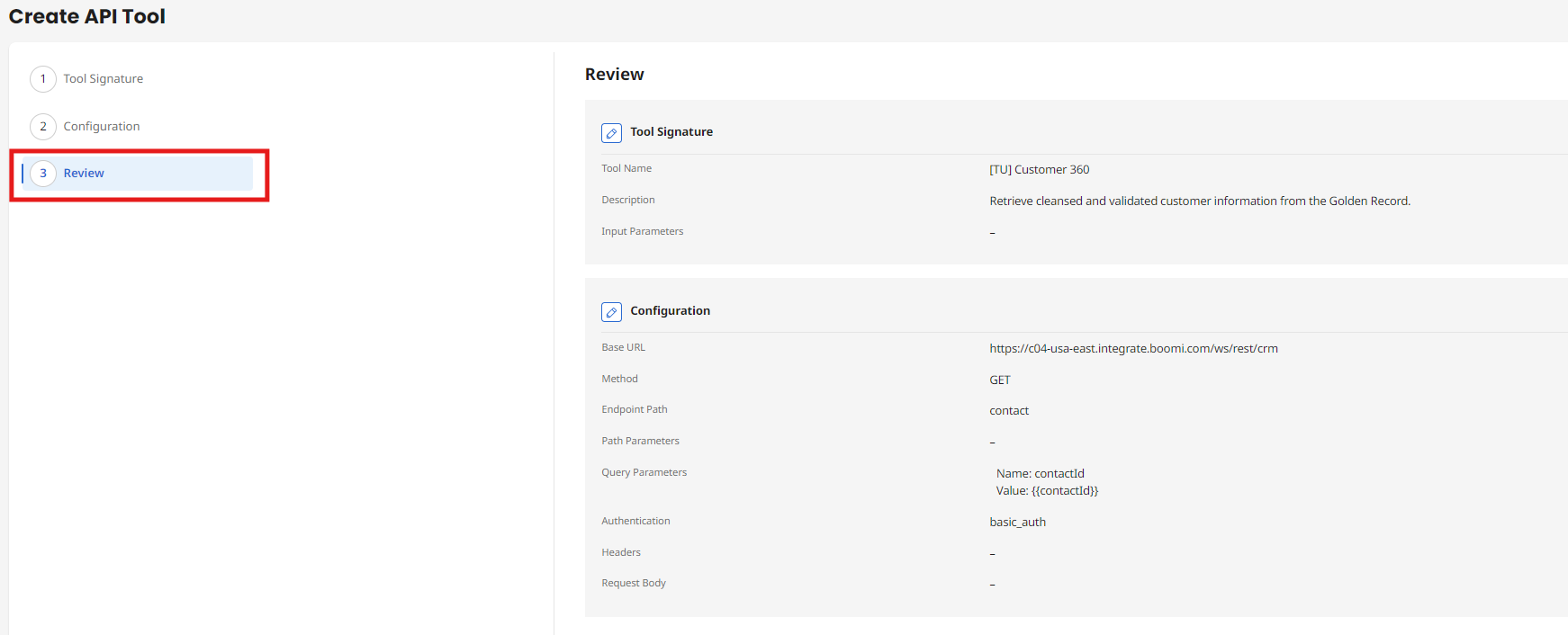
-
Select Deploy.
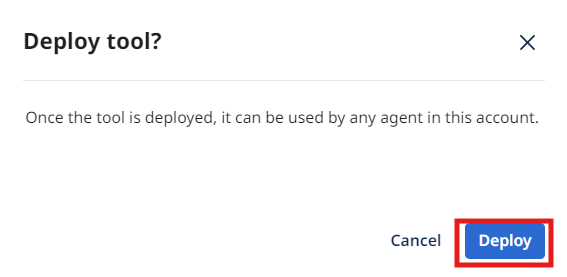
Congratulations, you have successfully deployed your first AI Agentstudio Tool!
Building the Customer Retention Metadata API Tool
Add Tool Type: API Tool
-
Select Create New Tool.
-
Select the API Tool.
-
Select Add Tool.
-
Enter the following:
- Tool Name:
[builderInitials] Customer Retention Metadata - Description:
Retrieve customer metadata from the data warehouse
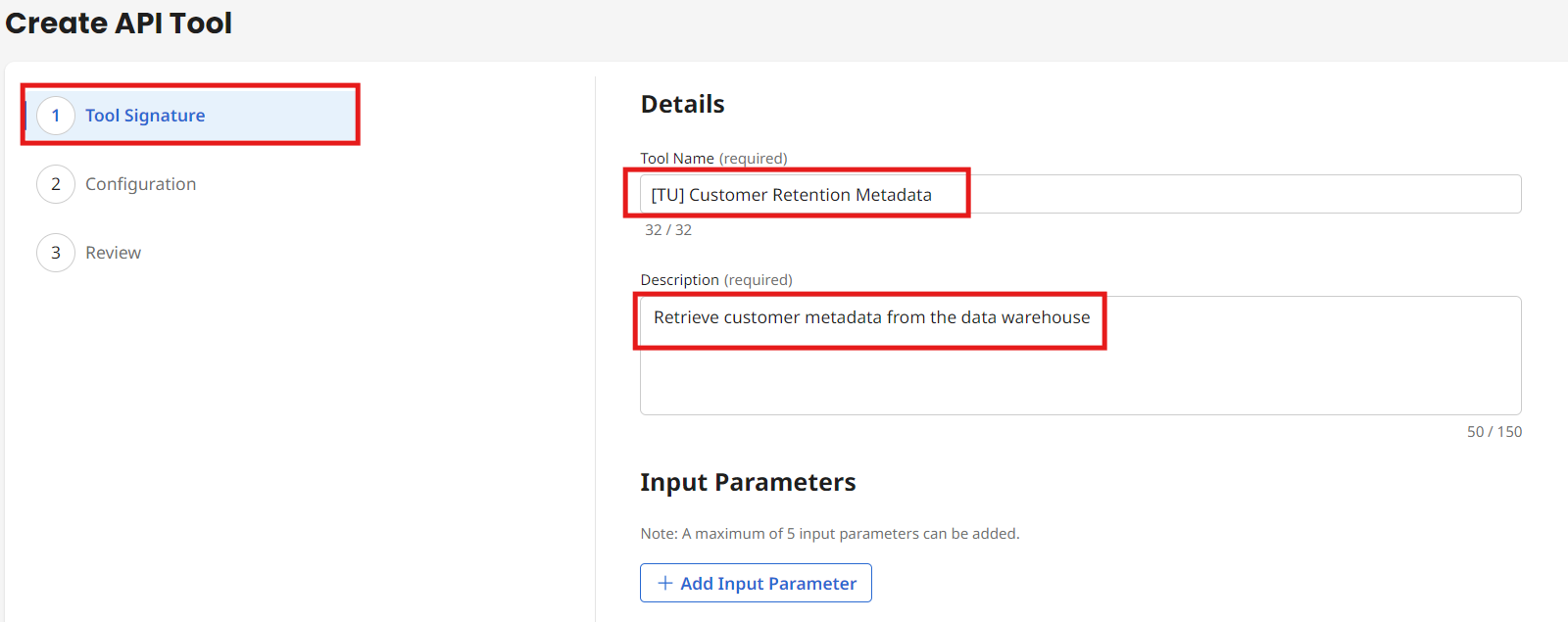
- Tool Name:
-
Click + Add Input Parameter.
-
Configure the customerId parameter:
- Name:
customerId - Description:
Customer ID to retrieve for Metadata - Type: String
- Required: False
- Name:
-
Click Add Input Parameter.
-
Select Save & Continue.
Configure your API Tool
-
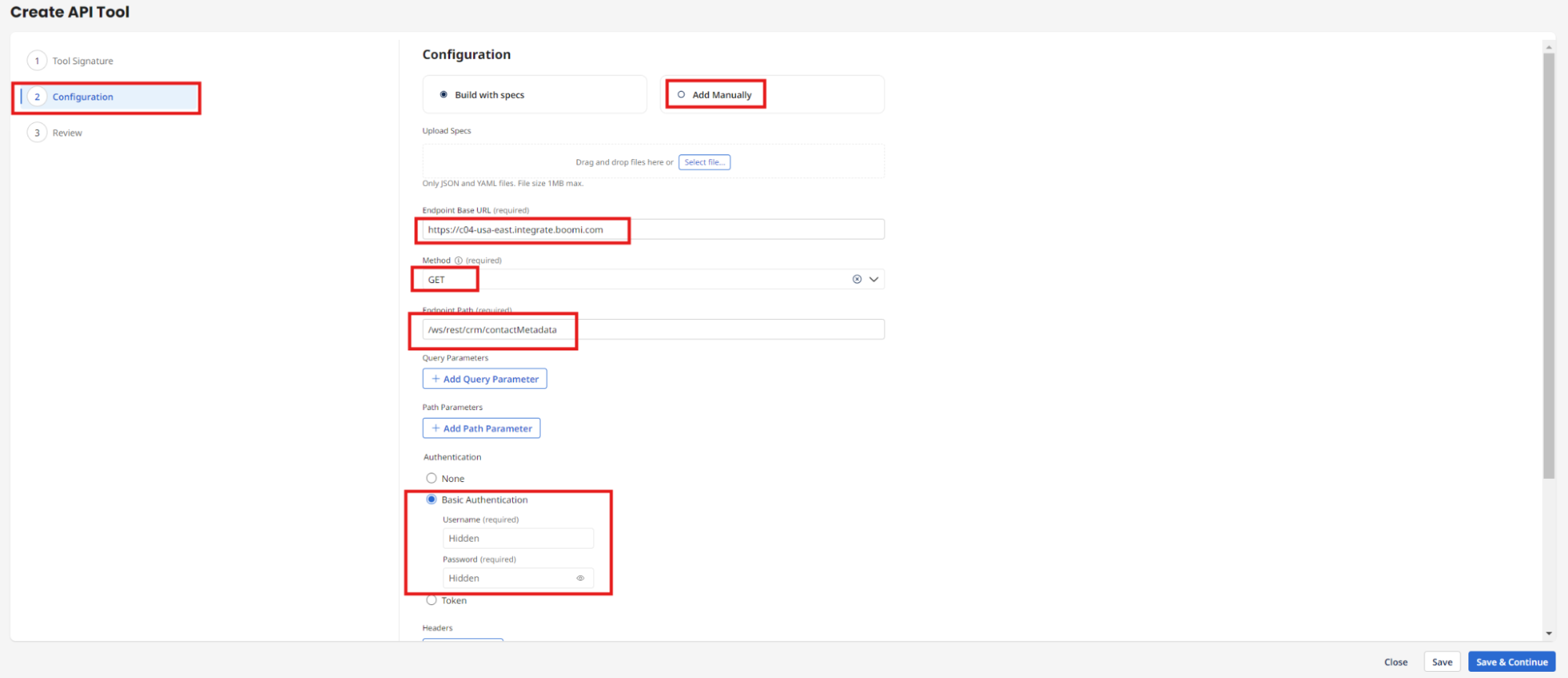
Choose Add Manually on the Configuration screen.
- Base URL:
https://c04-usa-east.integrate.boomi.com - Method: GET
- Endpoint Path:
/ws/rest/tools/contactMetadata - Basic Authentication:
- Username:
boomi_joel_davenport-XBUHTV.LSK9ET - Password:
127dcae6-015c-4f3c-8494-184785aaff0b
- Username:
- Base URL:
-
Select Save & Continue.
Deploy the Tool
-
Select Deploy Tool.
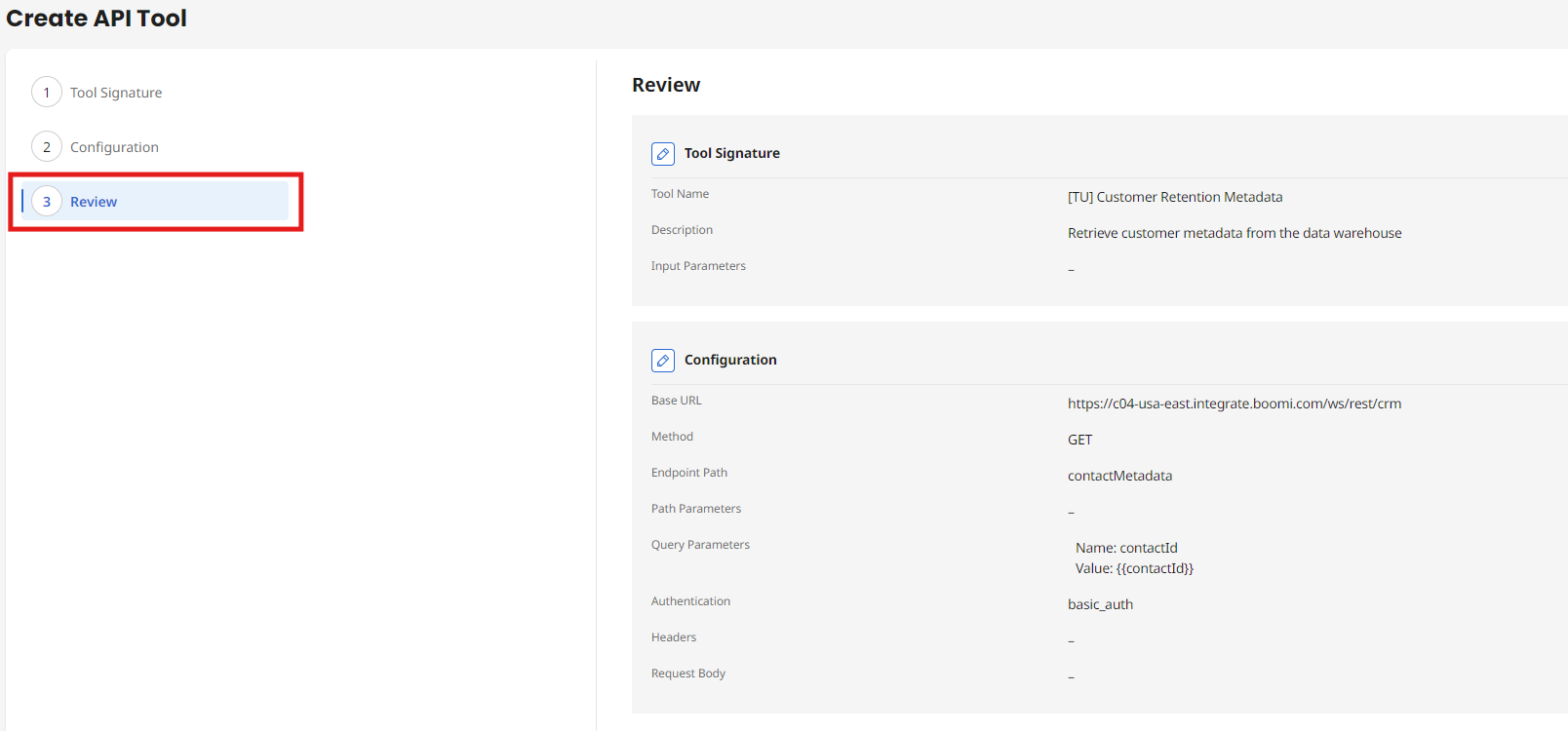
-
Select Deploy.
Congratulations, you have successfully deployed your second AI Agentstudio Tool!
Building the Notification and Escalations Integration Tool
Add Tool Type: Integration
-
Select Create New Tool.
-
Select the Integration Tool.
-
Select Add Tool.
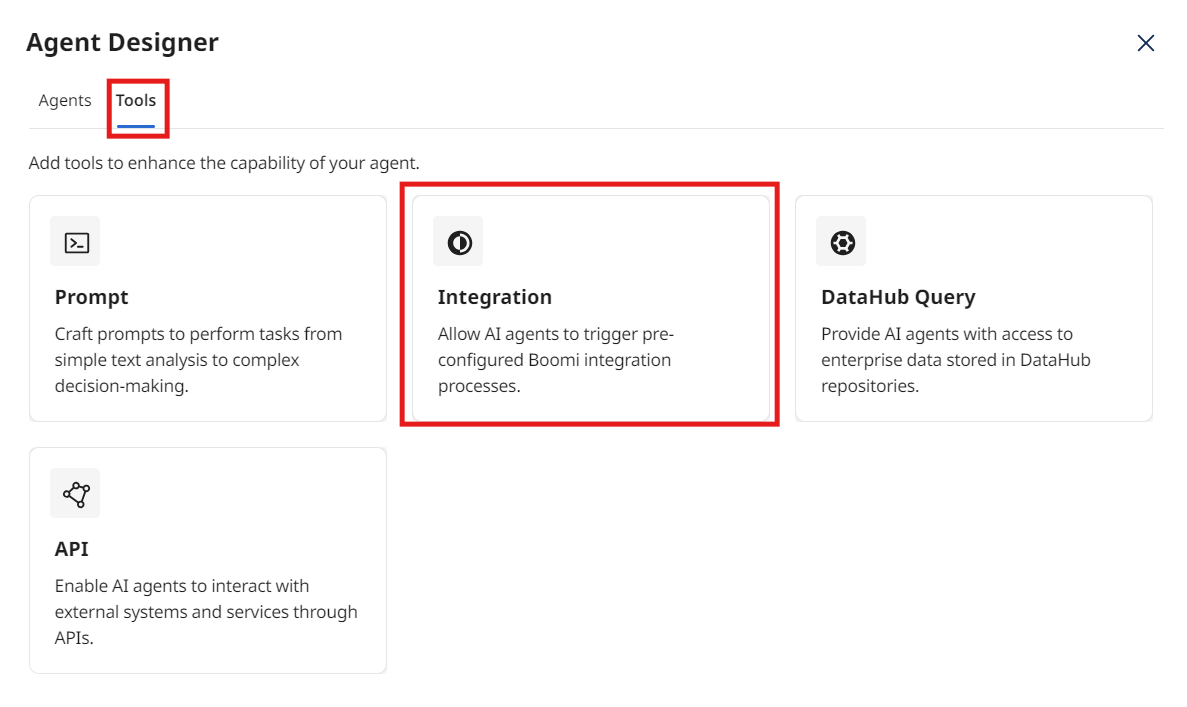
-
Enter the following:
- Tool Name:
[builderInitials] Notification and Escalation - Description:
Notify and escalate high risk customers to be more proactive to churn risks and retention.
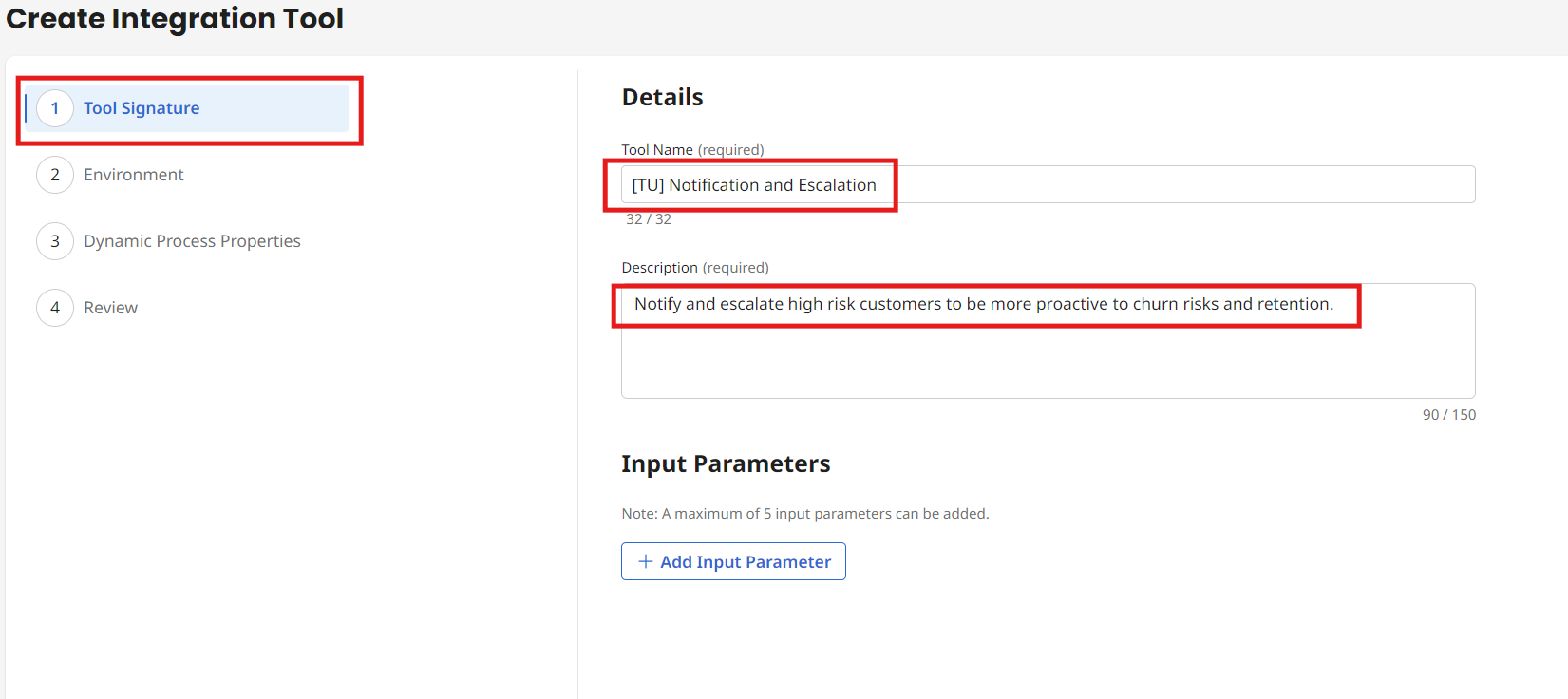
- Tool Name:
Add Input Parameters
-
Select + Add Input Parameter.
-
Enter the following:
- Name:
Name - Description:
Name of the customer - Type: String
- Required: Checked
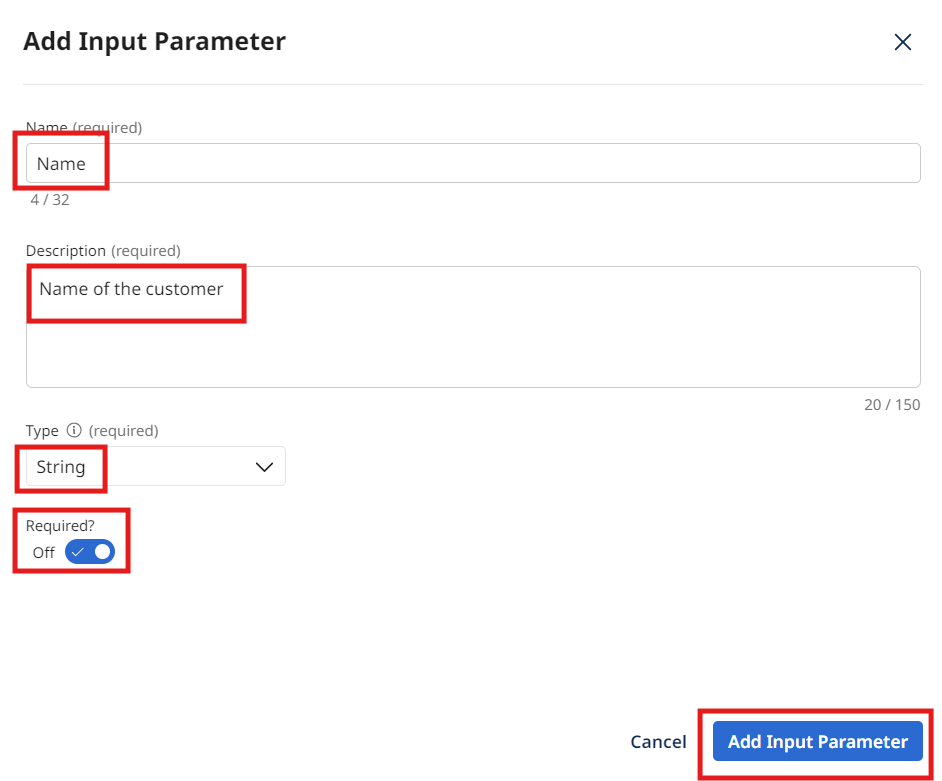
- Name:
-
Select Add Input Parameter.
-
Select Save & Continue.
Configure Integration Environment
-
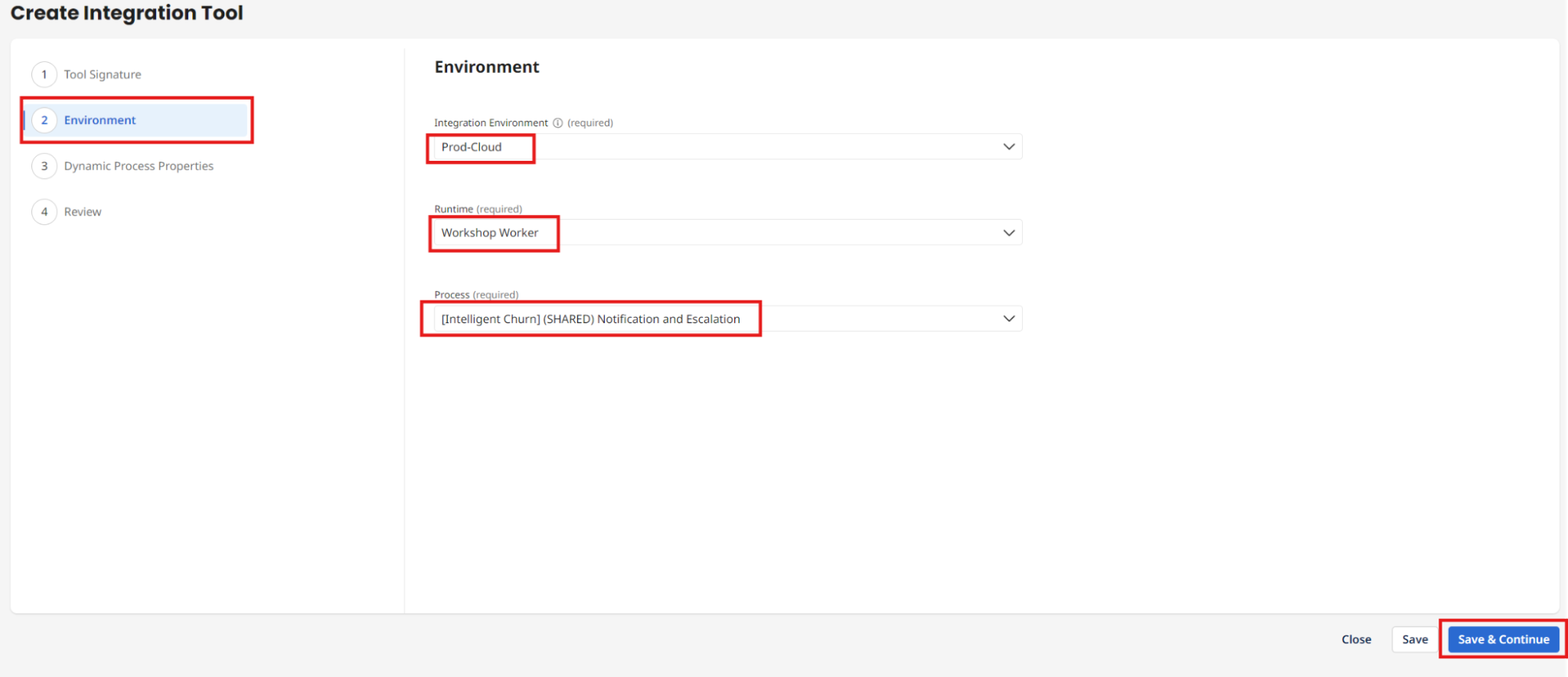
Enter the following:
- Integration Environment: Prod-Cloud
- Runtime: Workshop Worker
- Process: [Intelligent Churn] (SHARED) Notification and Escalation
-
Select Save & Continue.
Add Dynamic Process Property
-
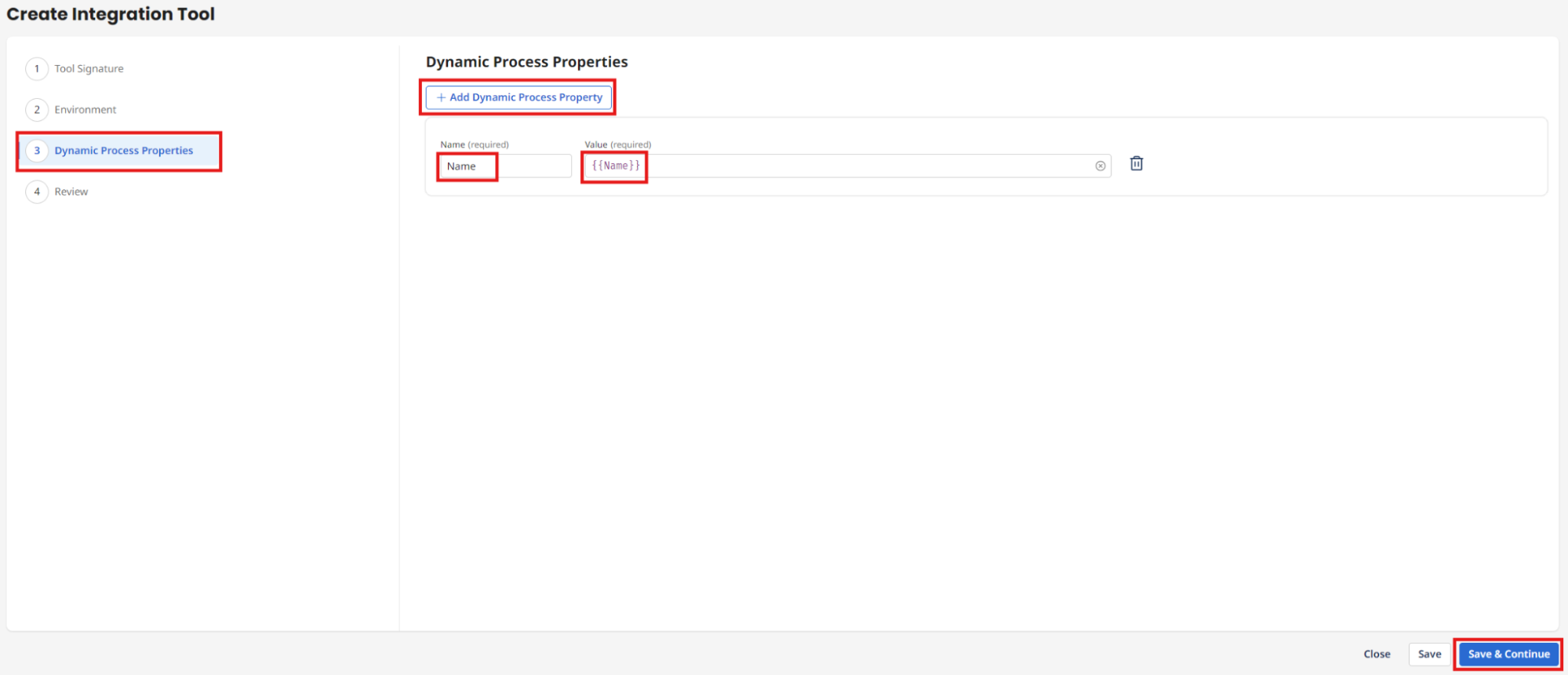
Select + Add Dynamic Process Property.
-
Enter the following:
- Name:
Name - Value:
{{Name}}
- Name:
-
Select Save & Continue.
Deploy the Tool
-
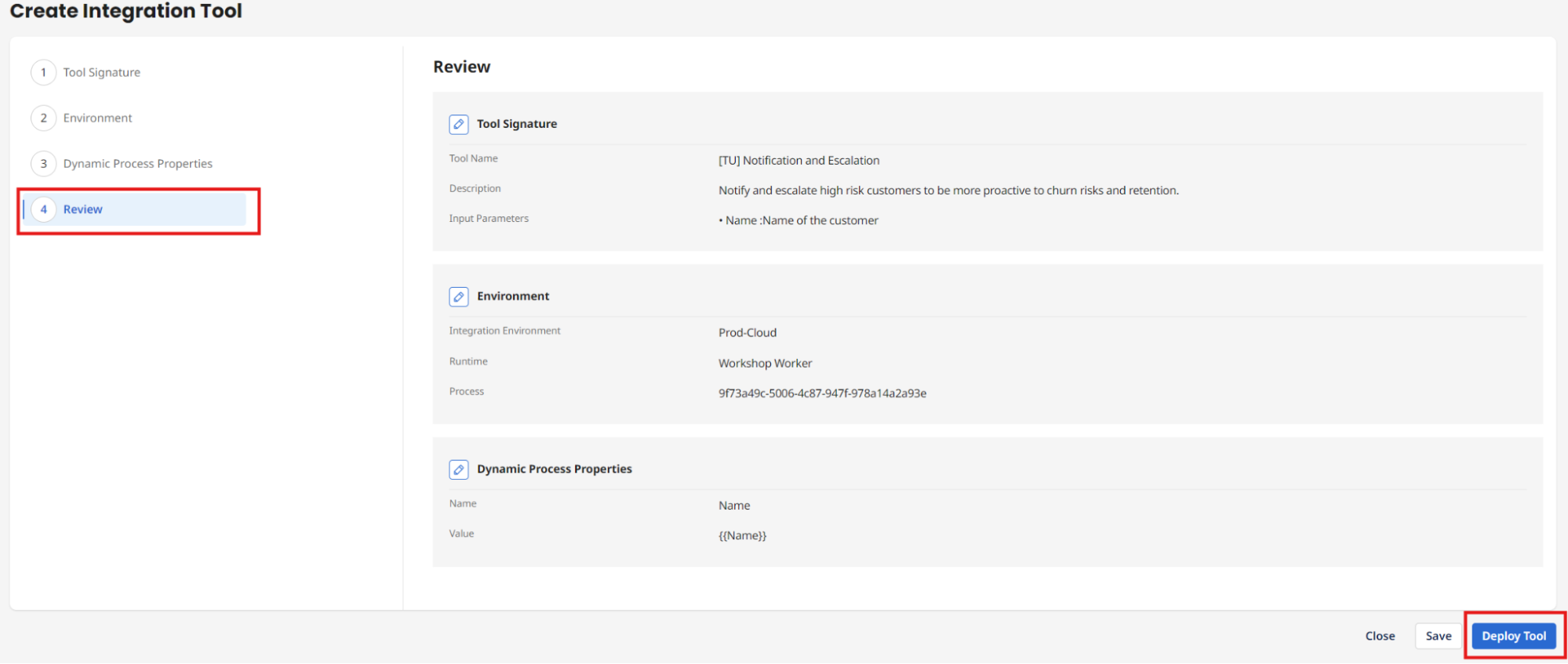
Select Deploy Tool.
-
Select Deploy.
Congratulations, you have successfully deployed your third AI Agentstudio Tool and are ready to create your first AI Agent!