Part 2: Create Agent
In this section, you will build the foundation of your agent, defining its core purpose, tasks, instructions, and safety guardrails.
Create a New Agent
-
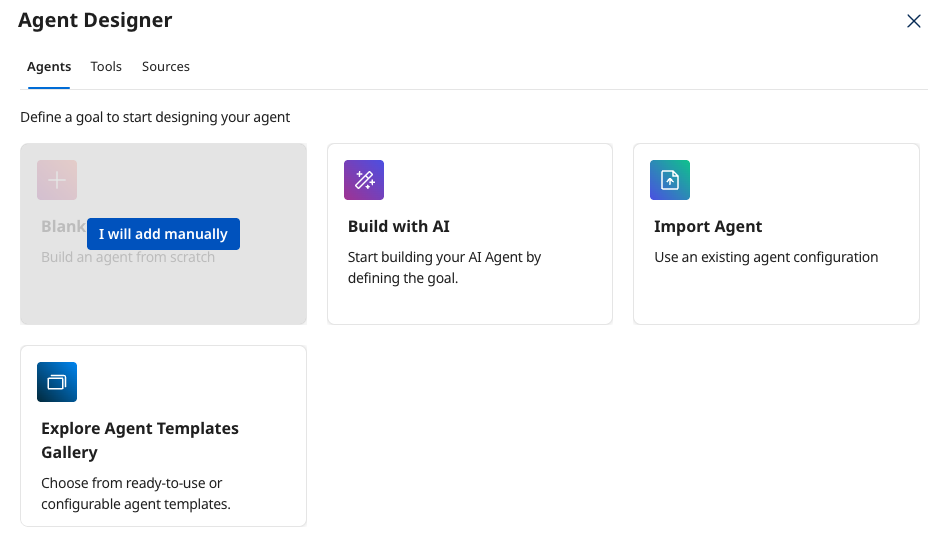
In Agent Garden → Agents, create a new agent by clicking Create New Agent.
-
Start with a Blank Template → I will add manually.
-
Define the Agent's Profile:
-
Goal:
Convert EDI documents into Trading Partner configurations on the Boomi Platform through automated extraction and API integration -
Name:
[builderInitials] Trading Partner Onboarding -
Voice: Professional
-
-
Click the Save & Continue button.
Create Task for Extracting Information
-
Click on the Tasks tab and click + Add New Task.
-
Name:
Extract EDI Document Variables -
Description:
Parse and extract specific variables from the provided EDI document -
Instructions:
Validate the input EDI document structure.
Extract ISA Control variables: version, interchangeId, securityInformation, authorizationInformation, standardIdentification.
Extract GS Control Information: respagencycode, applicationcode, gsVersion.
Extract Partner Document Type: typeId.
Extract Contact Information: contactName, address1, address2, city, state, postalCode, country, email, phone, fax.
Identify Trading Partner Name and EDI Communication Standard.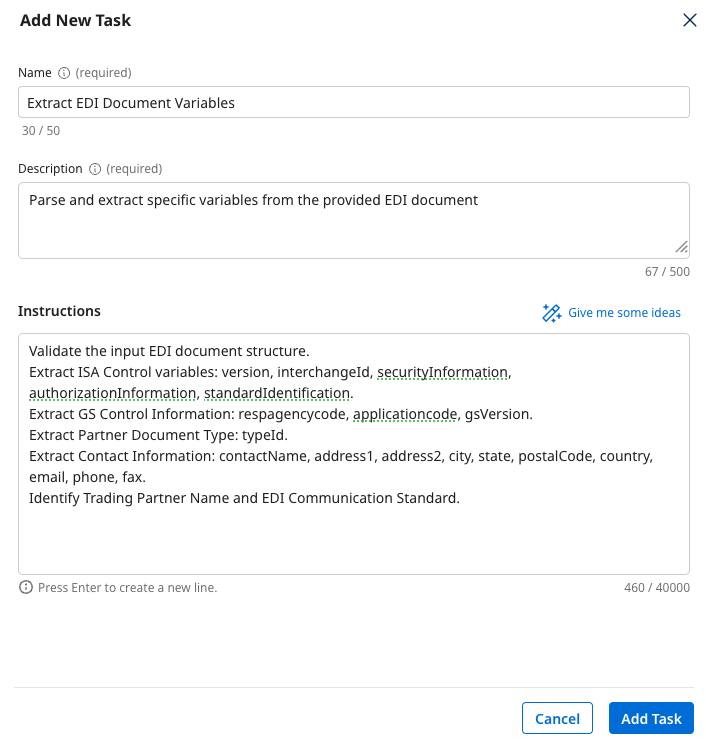
-
Click the Add Task button.
Create Task for Generating XML Specification
-
Still on the Tasks tab, click + Add New Task.
-
Name:
Generate XML Specification -
Description:
Transform variables into structured XML Specification -
Instructions:
Create a XML object with all extracted variables.

Validate that ISAControlInfo matches the following spec:
{
	"ISAControlInfo": {
	"type": "object",
	"properties": {
		"ackrequested": {
		"type": "boolean",
		"xml": {
			"attribute": true
		}
		},
		"authorizationInformation": {
		"type": "string",
		"xml": {
			"attribute": true
		}
		},
		"authorizationInformationQualifier": {
		"type": "string",
		"xml": {
			"attribute": true
		},
		"enum": [
			"X12AUTHQUAL_00",
			"X12AUTHQUAL_01",
			"X12AUTHQUAL_02",
			"X12AUTHQUAL_03",
			"X12AUTHQUAL_04",
			"X12AUTHQUAL_05"
		]
		},
		"componentElementSeparator": {
		"type": "string",
		"xml": {
			"attribute": true
		}
		},
		"interchangeId": {
		"type": "string",
		"xml": {
			"attribute": true
		}
		},
		"interchangeIdQualifier": {
		"type": "string",
		"xml": {
			"attribute": true
		},
		"enum": [
			"X12IDQUAL_01",
			"X12IDQUAL_02",
			"X12IDQUAL_03",
			"X12IDQUAL_04",
			"X12IDQUAL_07",
			"X12IDQUAL_08",
			"X12IDQUAL_09",
			"X12IDQUAL_10",
			"X12IDQUAL_11",
			"X12IDQUAL_12",
			"X12IDQUAL_13",
			"X12IDQUAL_14",
			"X12IDQUAL_15",
			"X12IDQUAL_16",
			"X12IDQUAL_17",
			"X12IDQUAL_18",
			"X12IDQUAL_19",
			"X12IDQUAL_20",
			"X12IDQUAL_21",
			"X12IDQUAL_22",
			"X12IDQUAL_23",
			"X12IDQUAL_24",
			"X12IDQUAL_25",
			"X12IDQUAL_26",
			"X12IDQUAL_27",
			"X12IDQUAL_28",
			"X12IDQUAL_29",
			"X12IDQUAL_30",
			"X12IDQUAL_31",
			"X12IDQUAL_32",
			"X12IDQUAL_33",
			"X12IDQUAL_34",
			"X12IDQUAL_NR",
			"X12IDQUAL_ZZ"
		]
		},
		"securityInformation": {
		"type": "string",
		"xml": {
			"attribute": true
		}
		},
		"securityInformationQualifier": {
		"type": "string",
		"xml": {
			"attribute": true
		},
		"enum": [
			"X12SECQUAL_00",
			"X12SECQUAL_01"
		]
		},
		"standardIdentification": {
		"type": "string",
		"xml": {
			"attribute": true
		}
		},
		"testindicator": {
		"type": "string",
		"xml": {
			"attribute": true
		},
		"enum": [
			"P",
			"T"
		]
		},
		"version": {
		"type": "string",
		"xml": {
			"attribute": true
		}
		}
	}
	}
}

Validate that GSControlInfo matches the following spec:
{
	"GSControlInfo": {
	"type": "object",
	"properties": {
		"applicationcode": {
		"type": "string",
		"xml": {
			"attribute": true
		}
		},
		"gsVersion": {
		"type": "string",
		"xml": {
			"attribute": true
		}
		},
		"respagencycode": {
		"type": "string",
		"xml": {
			"attribute": true
		},
		"enum": [
			"T",
			"X"
		]
		}
	}
	}
}

Validate that PartnerDocumentType matches the following spec:
{
	"PartnerDocumentType": {
	"type": "object",
	"properties": {
		"expectAckForOutbound": {
		"type": "boolean",
		"xml": {
			"attribute": true
		}
		},
		"invalidDocumentRouting": {
		"type": "string",
		"xml": {
			"attribute": true
		},
		"enum": [
			"documentsPath",
			"errorsPath"
		]
		},
		"name": {
		"type": "string",
		"xml": {
			"attribute": true
		}
		},
		"profileId": {
		"type": "string",
		"xml": {
			"attribute": true
		}
		},
		"qualifierValidation": {
		"type": "boolean",
		"xml": {
			"attribute": true
		}
		},
		"typeId": {
		"type": "string",
		"xml": {
			"attribute": true
		}
		},
		"use999Ack": {
		"type": "boolean",
		"xml": {
			"attribute": true
		}
		},
		"useTA1Ack": {
		"type": "boolean",
		"xml": {
			"attribute": true
		}
		},
		"validateOutboundTransactionSets": {
		"type": "boolean",
		"xml": {
			"attribute": true
		}
		}
	}
	}
}

Validate that ContactInfo matches the following spec:
{
	"ContactInfo": {
	"required": [
		"address1",
		"address2",
		"city",
		"contactName",
		"country",
		"email",
		"fax",
		"phone",
		"postalcode",
		"state"
	],
	"type": "object",
	"properties": {
		"address1": {
		"type": "string",
		"xml": {
			"namespace": "http://api.platform.boomi.com/"
		}
		},
		"address2": {
		"type": "string",
		"xml": {
			"namespace": "http://api.platform.boomi.com/"
		}
		},
		"city": {
		"type": "string",
		"xml": {
			"namespace": "http://api.platform.boomi.com/"
		}
		},
		"contactName": {
		"type": "string",
		"xml": {
			"namespace": "http://api.platform.boomi.com/"
		}
		},
		"country": {
		"type": "string",
		"xml": {
			"namespace": "http://api.platform.boomi.com/"
		}
		},
		"email": {
		"type": "string",
		"xml": {
			"namespace": "http://api.platform.boomi.com/"
		}
		},
		"fax": {
		"type": "string",
		"xml": {
			"namespace": "http://api.platform.boomi.com/"
		}
		},
		"phone": {
		"type": "string",
		"xml": {
			"namespace": "http://api.platform.boomi.com/"
		}
		},
		"postalcode": {
		"type": "string",
		"xml": {
			"namespace": "http://api.platform.boomi.com/"
		}
		},
		"state": {
		"type": "string",
		"xml": {
			"namespace": "http://api.platform.boomi.com/"
		}
		}
	}
	}
}

Assemble the XML object using the Generate TP XML Prompt Tool provided. -
Click the Add Task button.
Link Prompt Tool to Task
Now you will add the Prompt Tool created in Part 1 to the Generate XML Specification task.
-
On the Tasks tab, find the Generate XML Specification task just created.
-
Click the Manage Tools button for this task.
-
Click + Add New Tool.
-
Search for and check the box for the tool:
Generate TP XML. -
Click Add Tool, and then Save.
Create Task for Trading Partner Creation
-
Still on the Tasks tab, click + Add New Task.
-
Name:
Boomi Trading Partner Creation -
Description:
Send XML specification to Boomi Platform API for Trading Partner setup -
Instructions:
Submit request to create new Trading Partner to the API.
Validate successful trading partner creation. -
Click Add Task.
Link API Tool to Task
-
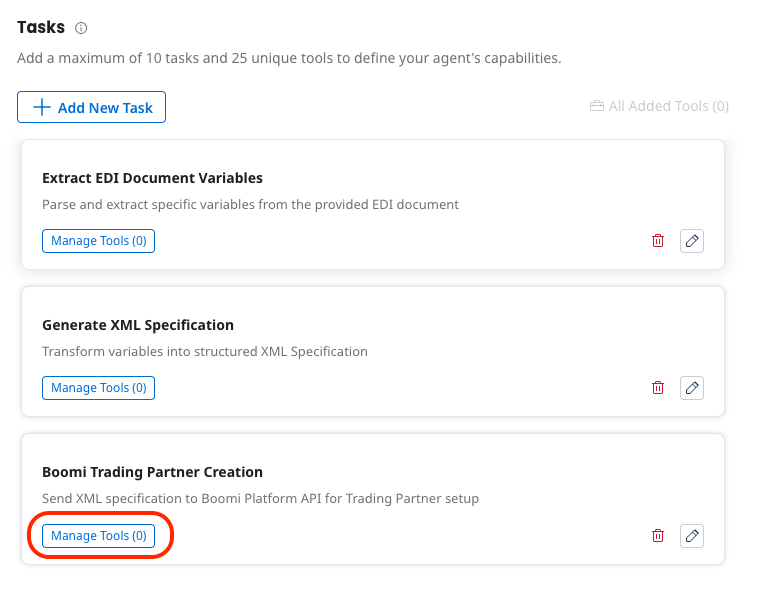
Under the Boomi Trading Partner Creation agent, click the Manage Tools button.
-
Click + Add New Tool
-
Search for and check the box for tool you created in Part 1 (
[builderInitials] Create Trading Partner).

-
-
Click Add Tool, and then Save.
Deploy the Agent
- Click Save & Continue until you get to the Review tab.
- Click Deploy Agent → Deploy.