Part 2: Build your Agent
3. Create a New Agent
This agent will be the "brain" of your Customer Support Insights assistant. It will be provided with specific tools that it can use, as it deems appropriate.
-
In Agent Garden, select Agents in the left menu. Select Create New Agent.
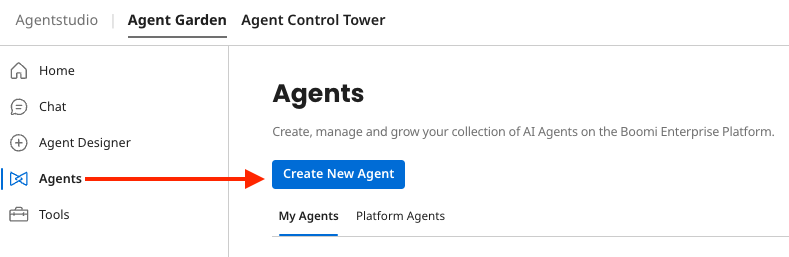
-
Start with a Blank Template → I will add manually.
-
Profile:
- Goal:
Customer support assistant to answer support case questions about our products. - Agent Name:
CustomerSupportAgent - Model Configuration: Leave all defaults
- Voice: Professional
- Add Conversation Starters:
-
Tell me about the FP-2100-GRD -
Define compatible parts with product code: FP-2100-GRD
-
- Goal:
-
-
Select Save and Continue.
Task 1: Research a Case
-
Click + Add New Task.
-
Task Name:
Research a case by retrieving product info -
Description:
A question will be asked about a product. Research the case by querying for product information.noteLeave Instructions empty.
-
Click Add Task.
Link API Tool to Task 1
-
On the Tasks tab, find the Research a case by retrieving product info task just created.
-
Click the Manage Tools button for this task.
-
Click + Add New Tool.
-
Search for and check the box for the tool:
Get Product Info by Code(API Tool).infoLeave checkboxes unchecked after adding tools (Requires Approval; Data Passthrough).
-
Click Add Tool, and then Save.
Task 2: Generate Response
-
Click + Add New Task.
-
Task Name:
Generate proposed response or resolution -
Description:
Using the product information retrieved, generate a draft or proposed resolution or response to the customer support case. -
Instructions:
Using the product information retrieved, generate a draft or proposed resolution or response to the customer support case.
Format the response using the following template: Dear (customer name), (proposed resolution) Thank you, Acme, Inc. -
Click Add Task.
4. Save and Test the Agent
-
Save the agent.
-
Now test the agent in the Test Agent panel by prompting:
Define compatible parts with product code: FP-2100-GRD -
View the response.
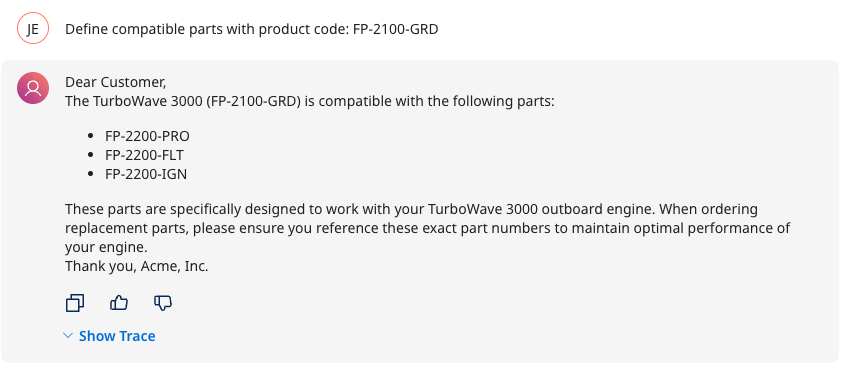 tip
tipWhile testing the agent, select Show Trace to review the logs and see the agent's rationale and the tasks/tools used.
-