Prerequisites
-
Log in to your Boomi Enterprise Platform account at https://platform.boomi.com.
tipIf you do not have an account, training accounts can be created at https://train.boomi.com.
-
Generate a Boomi Platform API Token and keep it handy. It will be needed later in the lab when using the Agent step on the Integration canvas and when setting up Agent Control Tower.
-
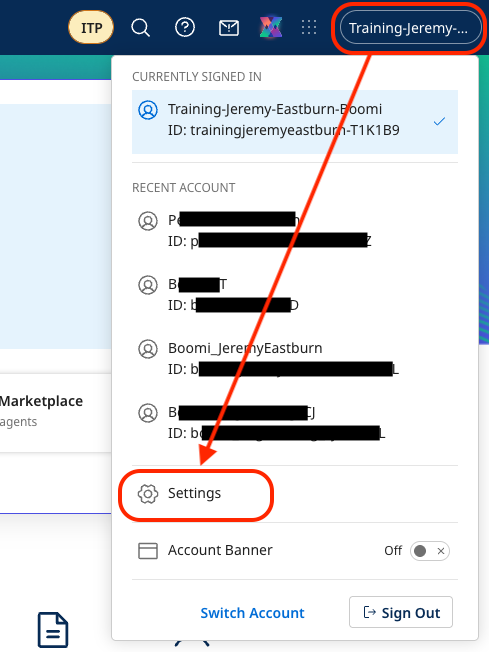
Select (Account Name) → Settings from the top-right menu.
-
Select Platform API Tokens. Create a new token named
Agentstudioand save it in a text editor (Notepad, TextEdit or VS Code).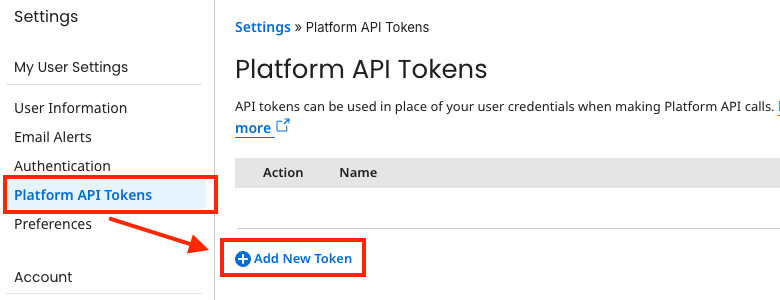 Reminder
Remember to save your
Boomi Platform API Tokento a notepad for later use. -
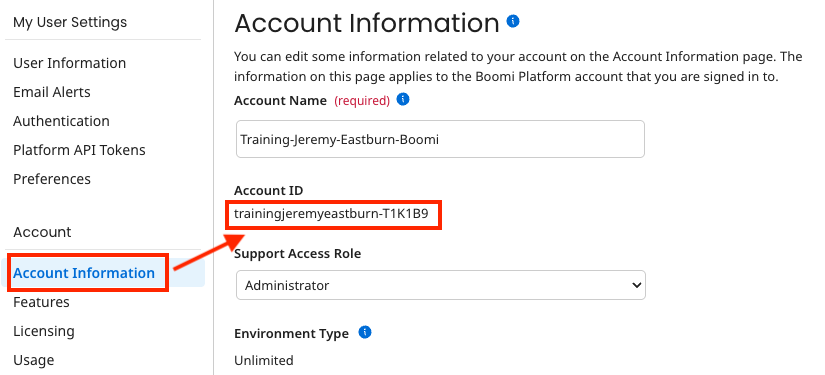
Select Account Information to copy the Account ID and save it in your text editor.
 Reminder
Remember to save your
Account IDto a notepad for later use.
-
-
Create a test Integration Environment and Cloud Runtime.
tipIf you already have a test environment and test runtime, you may skip the rest of this section and move on to Part 1.
-
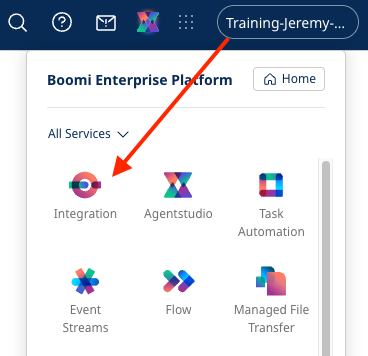
Select Services (9-dotted button in top-right menu) → Integration.
-
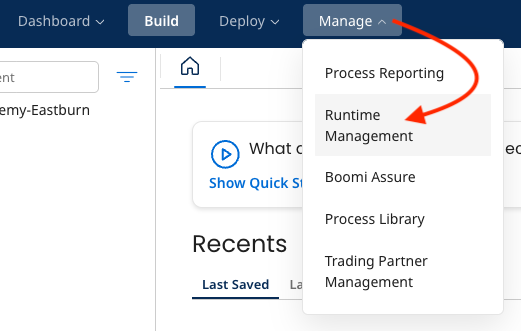
Select Manage → Runtime Management.
-
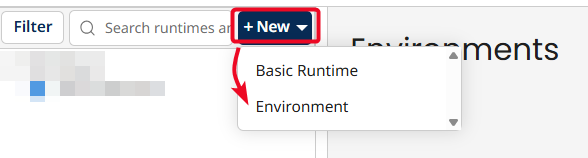
Select + New ▼ → Environment.
-
Create an environment named
Test Envwith the Test Environment Classification, and select Save.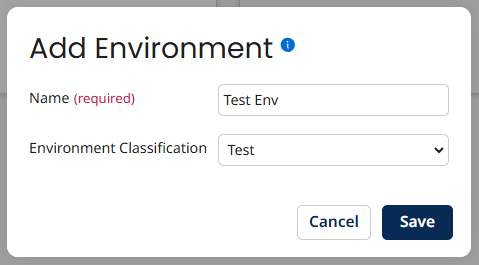
-
Select + New ▼ → Basic Runtime.
-
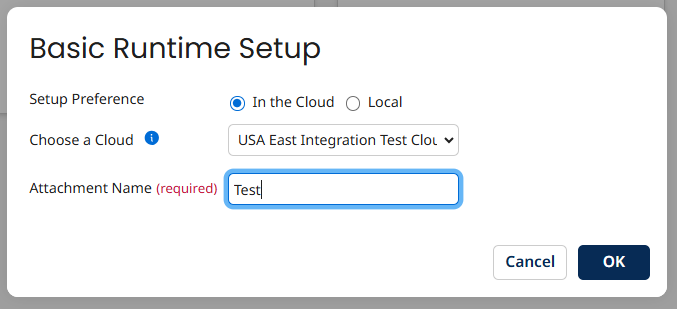
Select a Cloud to use for an Integration Runtime.
- Setup Preference: In the Cloud
- Choose a Cloud: Select a Cloud with Test in the name
- Attachment Name:
Test
-
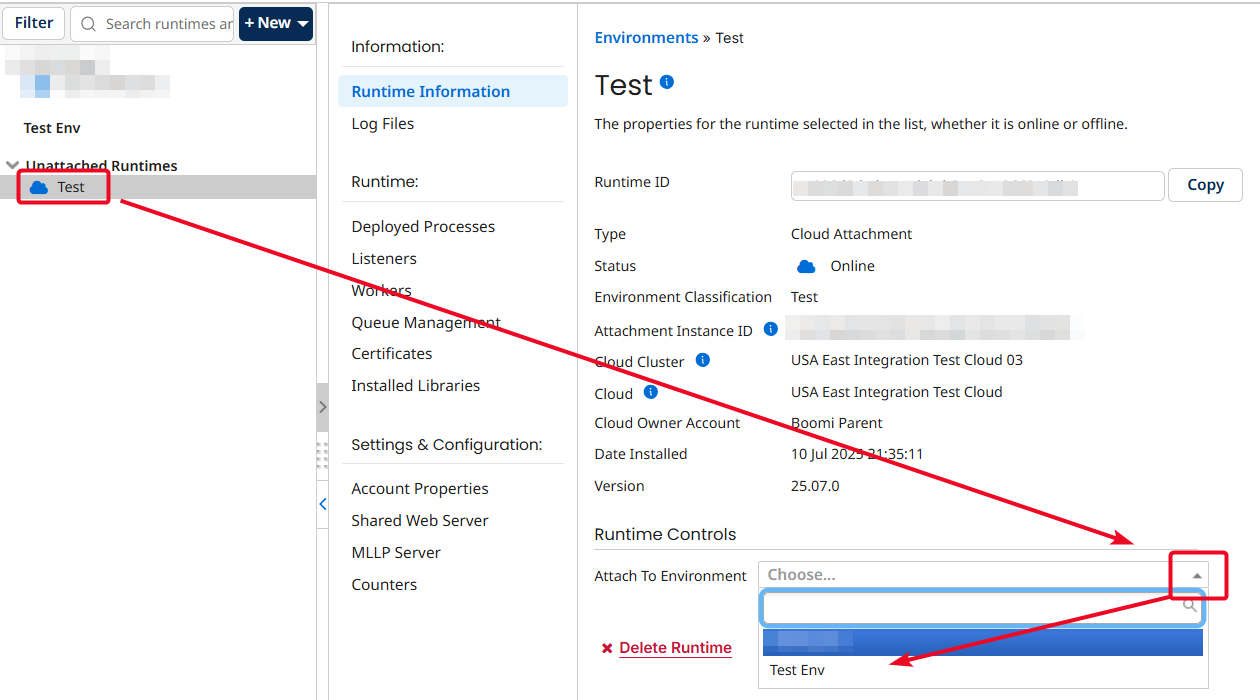
Add the Test runtime to the Test Environment by selecting the new Test runtime, then under Runtime Controls next to Attach to Environment select your Test Env test environment.
-